> ## Documentation Index
> Fetch the complete documentation index at: https://hercules.app/docs/llms.txt
> Use this file to discover all available pages before exploring further.
# How Hercules AI Agents Work
> Hercules AI reads/writes code, searches the web, generates images, and more. Learn agent modes, multi-agent, and how to improve accuracy.
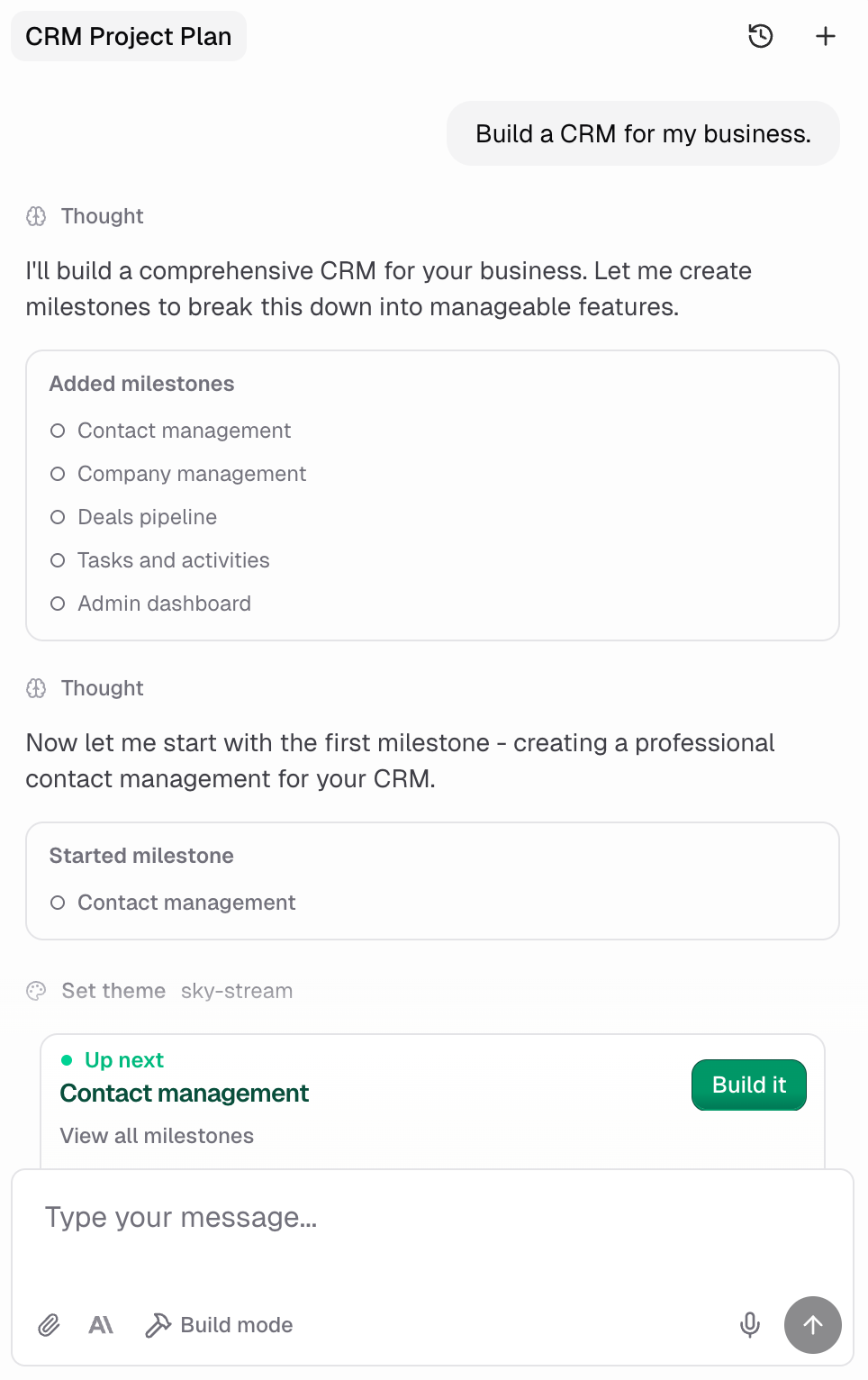
Hercules can
* read/write to a **codebase** to build features, fix bugs, and change UI
* search the **internet**
* generate **images**
* change data in your **database**
* interact with your **browser** to test changes,
* and more
Hercules is incredibly powerful. It gets cheaper, faster, and more accurate every day.
### What are agent modes?
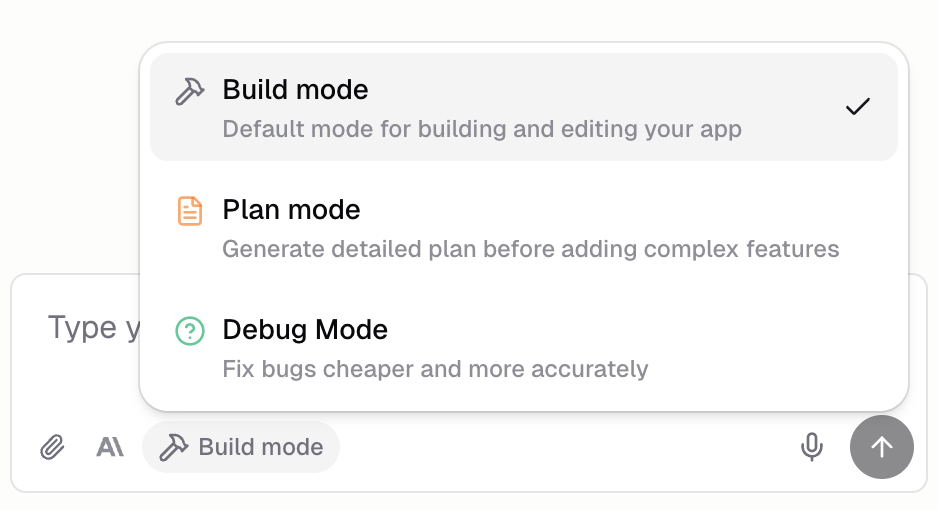
Agent modes to let you customize how Hercules AI responds. Use
* **Build** mode for building
* **Plan** mode for planning out large, complex features
* **Debug** mode for fixing issues
See [Agent modes](/ai/agent-modes) to learn more.
### How many AI agents can I have running at once?
You can run as many AI agents at the same time as you'd like. Every chat tab creates a new AI agent. Use separate AI agents to keep your chat history clean, make Hercules more accurate, and allow easy collaboration with your teammates. See [multi-agent](/ai/multi-agent) to learn more.

### How can I make Hercules more accurate?
Hercules is only as good as the instructions you give it. How you prompt it can make Hercules meaningfully more accurate. We strongly recommend you read our [Improve accuracy](/ai/improve-accuracy) guide and follow our recommended techniques.
### Can I share images, links, or files with Hercules?
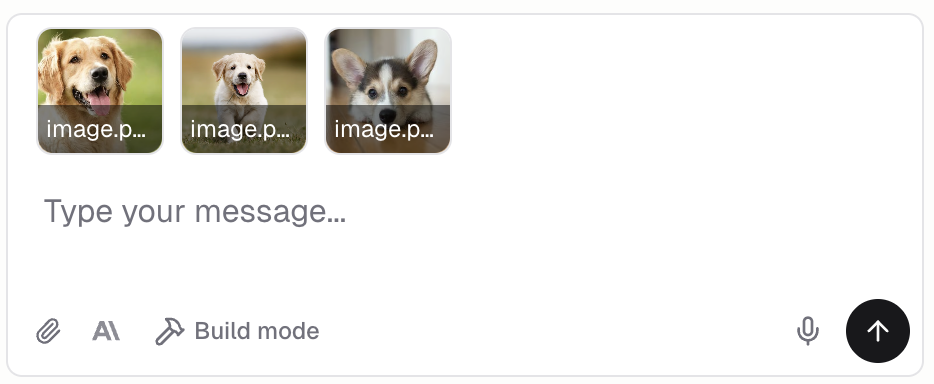
Yes! You can share:
* **Images** like screenshots, gifs, mockups, or designs
* **PDFs** like requirements documents, design specs, or supporting materials
* **Links** to websites, pages in your app, or [Hercules Files & Media](/apps/files-media-storage)
### What models do you offer?
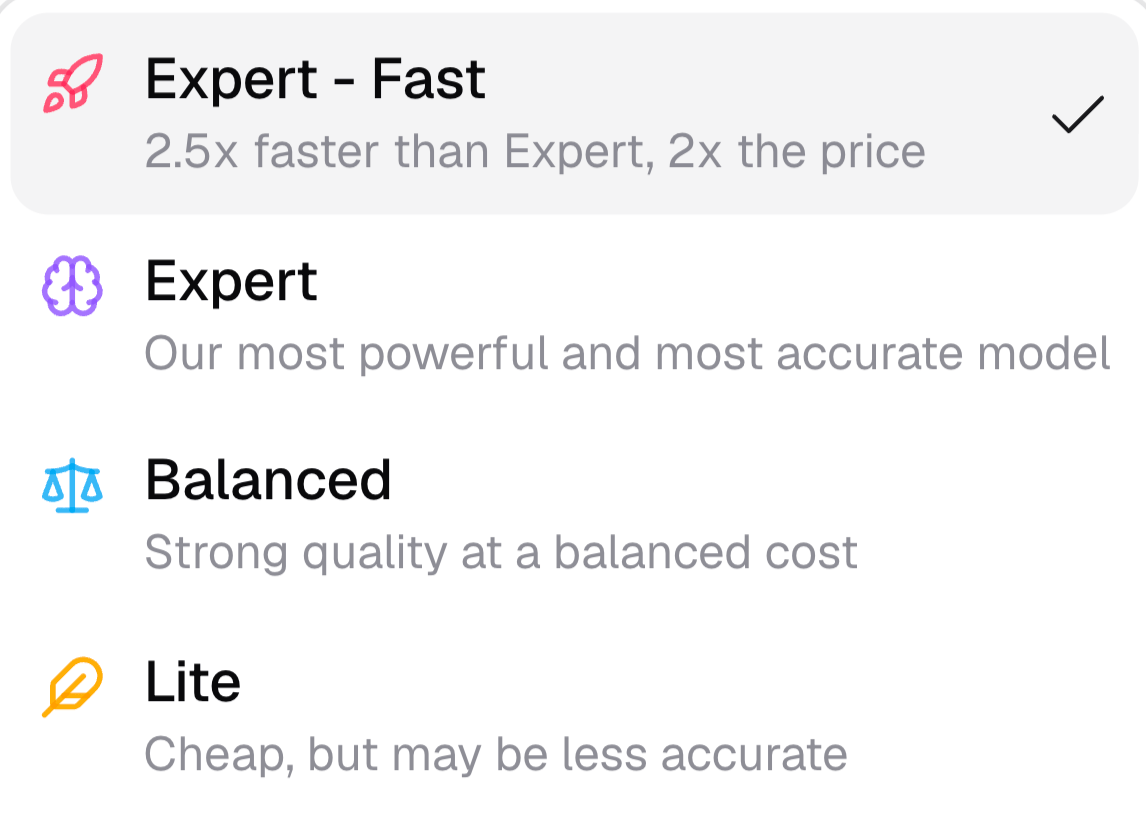
Hercules offers four models. Each one trades off speed, cost, and accuracy:
* **Expert - Fast**: Expert quality with less waiting. It is 2.5x faster than Expert at 2x the cost.
* **Expert** (recommended): The most powerful and most accurate model. Best for planning and complex work.
* **Balanced**: Strong quality at a balanced cost. A middle ground between Expert and Lite.
* **Lite**: The cheapest model, but less accurate. Best for low-risk tasks like small, well-scoped feature changes, content updates, and translations.
Expert - Fast, Expert, and Balanced are available on Pro, Business, and Ultra plans. Lite is available on all plans.
Switch models using the 🧠 selector in the chat input.
### Additional FAQ
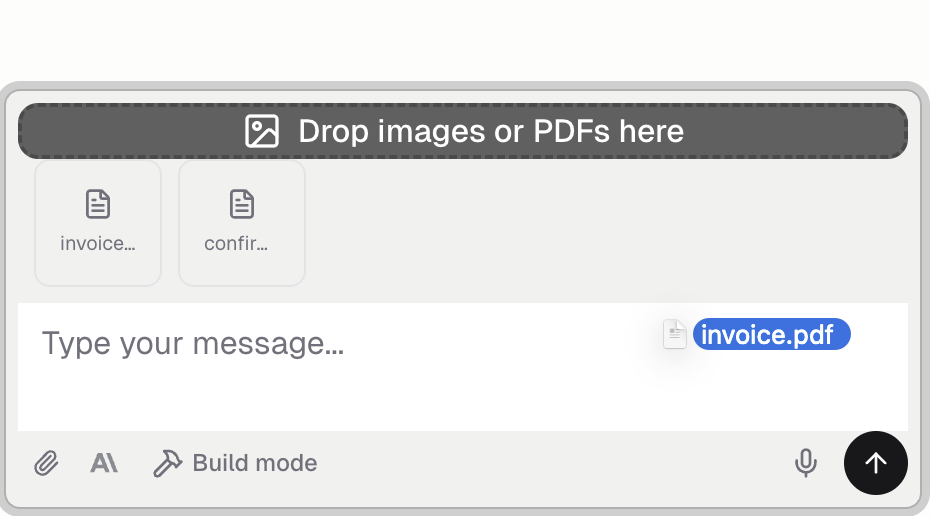
Upload images and PDFs by:
1. Dragging them to chat input
2. Pasting using the Ctrl + v / Cmd + v keyboard shortcut
3. Clicking the **+** button in the input bar
4. Selecting images from the [Hercules Files and Media](/apps/files-media-storage) tab
5. Using [capture tools](/apps/capture-tools) to capture screenshots, screen recordings, annotations, or code elements from within Hercules
Yes. The Agent can refresh the page, navigate to different URLs, click on elements, scroll, and more. This allows it to test changes and verify functionality automatically.
* **Hercules AI Agent** is what you use to build your app. It writes code, creates UI, and deploys changes.
* **[AI Gateway](/apps/ai-gateway)** allows you to integrate AI into your app so your users can use AI. For instance, you would use AI Gateway to add a chatbot, content generator, text summarization, or other AI-powered functionality to your app.
1. [Start a new chat](/ai/multi-agent)
2. Use [debug mode](/ai/agent-modes)
Read our [Improve accuracy](/ai/improve-accuracy) for our top recommendations on how to make Hercules more accurate.
Go to the **Personalize** tab and add **App Instructions**. Hercules follows them every time it builds or edits your app, in every chat. Useful for enforcing design preferences, coding standards, or app-specific rules. You can also set **Personal Instructions** (all your apps) or **Organization Instructions** (your whole team).