> ## Documentation Index
> Fetch the complete documentation index at: https://hercules.app/docs/llms.txt
> Use this file to discover all available pages before exploring further.
# Multi-Agent
> Run multiple AI agents at once. Create new agents for parallel work, cleaner context, and better accuracy.
Hercules lets you run multiple Agents at the same time so you can parallelize work and stay organized.
### When should I create a new Agent?
Create a new Agent when you start a task that isn't related to what your current Agent is working on. If your conversation has become long, unfocused, or you're switching to a different feature, a fresh Agent will produce better results.
### Why should I create new Agents?
1. **More accurate results:** Fresh Agents have cleaner context without noise from unrelated tasks
2. **Ship faster:** Implement multiple features at the same time by running multiple Agents in parallel
3. **Better organization:** Keep each feature or goal in its own tab
4. **Team collaboration:** Multiple teammates can work simultaneously, each with their own Agent
### Why do new Agents improve accuracy?
New Agents have cleaner context. When an Agent accumulates conversation history from unrelated tasks, that cruft can confuse future responses. Starting fresh removes irrelevant context so the Agent can focus entirely on your current goal.
### How do I create a new Agent?
Click the **+** button in the tab bar to create a new Agent tab.
### How do I switch between Agents?
Click on any Agent tab to switch to it. Each tab is an independent Agent with its own conversation history.
### How do I rename an Agent?
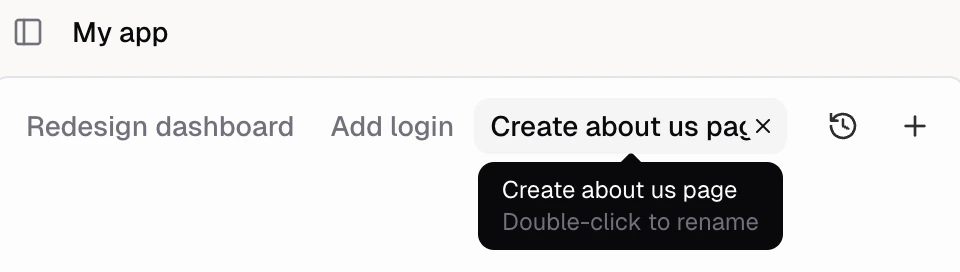
Agents are renamed automatically after your first message. However, you can also rename it by double-clicking the tab name and then editing it directly. Use descriptive names like "Dashboard redesign" or "Add checkout."
### How do I close an Agent?
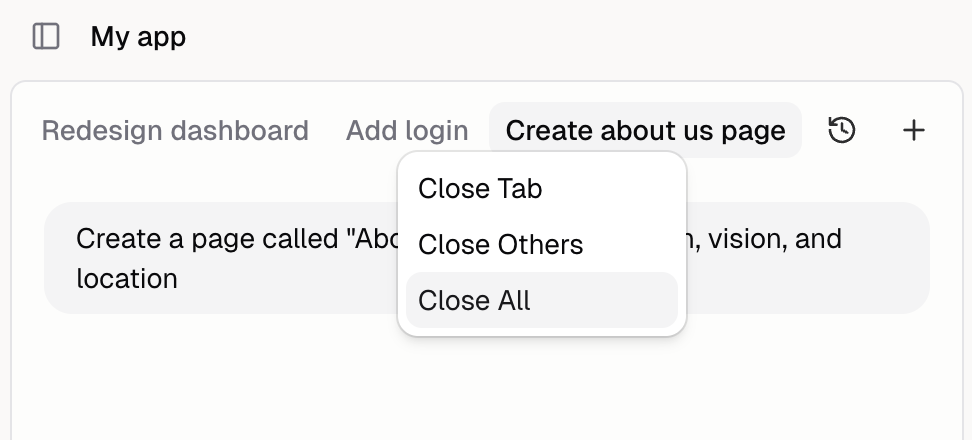
Right-click a tab to close it, close others, or close all tabs. You can also hover a tab and hit the X button.
### How do I see previous Agents?
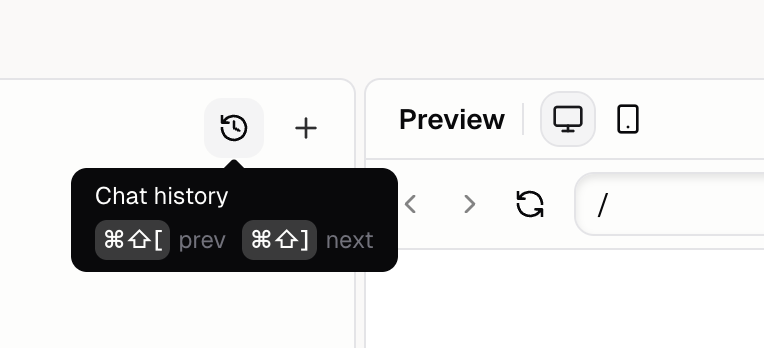
Click the history icon (clock) next to the + button to browse and re-open previous Agent conversations.
### What if two Agents edit the same part of the app?
Agents can work collaboratively on the same codebase. We recommend having agents work on different parts of the app to avoid integration errors. If two agents edit the same file, their changes will be merged automatically.