> ## Documentation Index
> Fetch the complete documentation index at: https://hercules.app/docs/llms.txt
> Use this file to discover all available pages before exploring further.
# Branches
> Build changes in parallel on an isolated branch with its own backend, then merge them back into your main app. Create, preview, and merge branches.
A branch is a copy of your app where you can build and test changes without touching the live version. Each branch has its own isolated backend, so the Agent can work in parallel while your main app stays untouched. When you're happy with the result, merge the branch back into main. If you don't want the changes, close the branch and nothing reaches your main app.
### When should I use a branch?
Use a branch when you want to try changes safely, away from your main app:
* Test a risky change or large rework before it reaches your main app
* Let the Agent work on a feature in the background while you keep building on main
* Try changes against a copy of your real data without affecting production
* Run several efforts in parallel, each on its own branch
For trying changes against throwaway data on a separate backend, see [Environments](/apps/environments). For running multiple Agents at once, see [Multi-Agent](/ai/multi-agent).
### How do I create a branch?
1. Open your app in the Dashboard
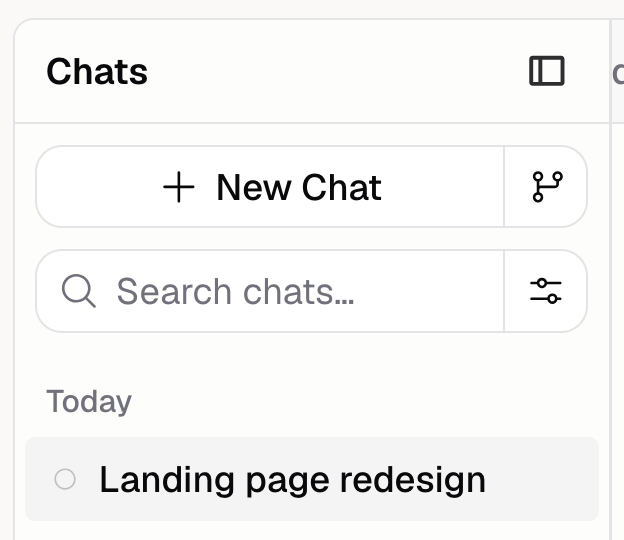
2. In the chat click the **Branch icon** (the icon to the right of **New Chat**)
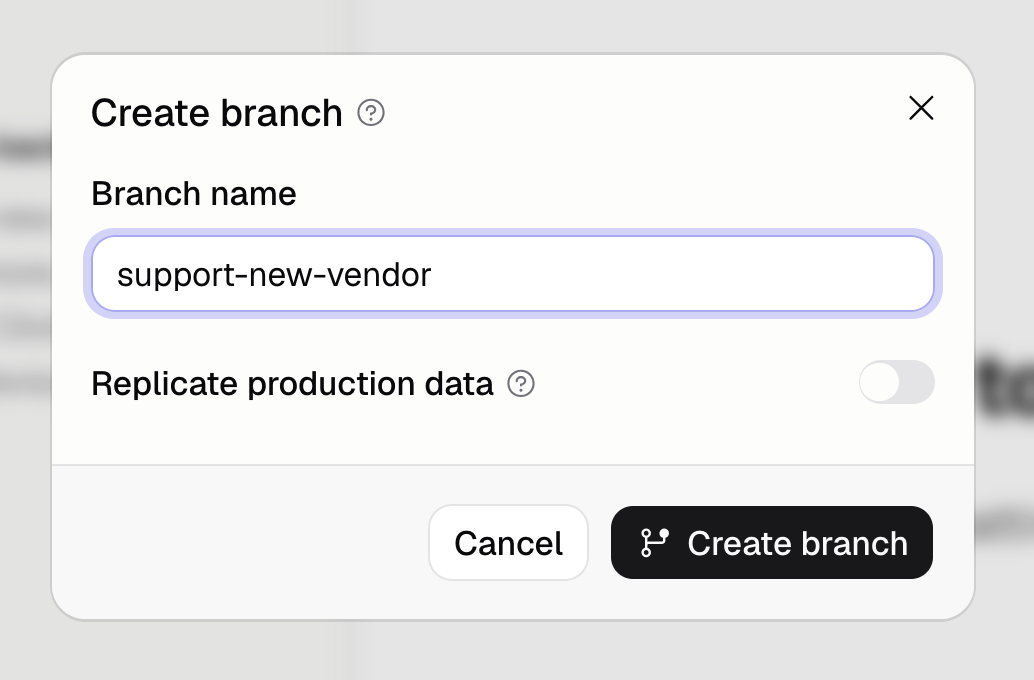
3. Enter a **Branch name**
4. Optionally turn on **Replicate production data** to copy your production database into the branch
5. Click **Create branch**
Hercules creates the branch with its own isolated backend. Branch names must be unique, you can't reuse the name of a branch that's already open.
Start your main dev session before creating a branch. If it isn't running yet, open your app's
preview first, then create the branch.
### What can I do on a branch?
A branch works like any other chat. You can:
* Chat with the Agent and ask for changes
* See a live preview of the branch as the Agent works
* View the diff (the list of files the branch has changed compared to main)
* Open more than one chat on the same branch, they share the same backend and code
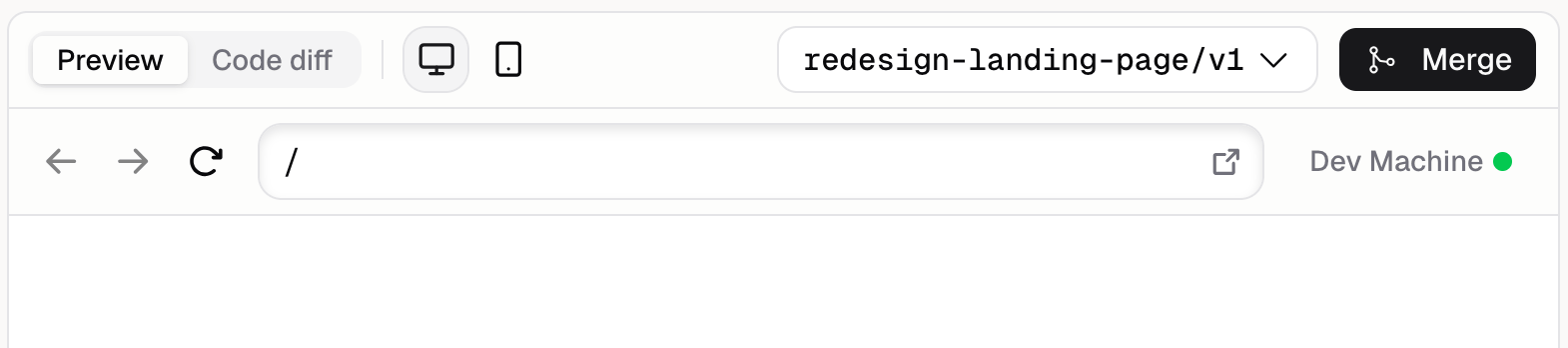
The preview header shows the branch name and a **Merge** button so you can merge without leaving the preview.
### How do I merge a branch into main?
Click **Merge** in the branch banner above the chat input. Hercules combines the branch changes into your main app. When it finishes, you'll see **Merged into main** and a "Branch merged into main" confirmation.
After a merge, the branch is done:
* Its changes are now part of your main app
* The chat for that branch can no longer be continued
To keep building, start a new chat on main or create a new branch.
### What happens if there are merge conflicts?
A conflict happens when the branch and main both changed the same thing. If Hercules can't merge cleanly, the banner changes to **Resolve merge conflicts** and shows which files conflict. Ask the Agent to resolve them, then click **Merge into main branch** to finish.
### Additional FAQ
A branch is one of four states:
* **Open.** Active and being built. You can chat, merge, or close it.
* **Resolving.** A merge started but hit conflicts. Resolve them, then complete the merge.
* **Merged.** The changes are now in your main app. The branch is finished.
* **Closed.** The branch was discarded without merging. The branch is finished.
Merged and closed are final. To keep building, start a new chat or branch.
No. Once a branch is merged it's finished, and its chat can't be continued. Start a new chat on
main, or create a new branch to keep building.
Yes. After you create a branch, the **New Chat in Branch** button starts another chat on it. All
chats on the same branch share the same backend and code, so changes from one show up for the
others.
It copies your production database into the branch when the branch is created, so you can test
against a copy of real data. The copy is a one-time snapshot, changes you make on the branch
afterward don't affect production. The option is only available if your app has a production
deployment. See [Environments](/apps/environments) and [Database](/apps/database).
[Version control](/apps/version-control) tracks every change to your main app in sequence so you
can revert. A branch is a separate, isolated copy where you build changes in parallel, then merge
them back into main in one step. Use a branch to work safely off to the side, use version history
to step back to an earlier point.
Each app can have up to 100 branches over its lifetime. Merging or closing branches you're done
with keeps you well under the limit.
The branch's backend is shut down, so its live preview stops. In its place you'll see a notice explaining what happened. Your main app's preview is unaffected.