> ## Documentation Index
> Fetch the complete documentation index at: https://hercules.app/docs/llms.txt
> Use this file to discover all available pages before exploring further.
# Branding & SEO
> Customize browser tab, login branding, Open Graph images, and theme. Built-in SEO tools for discoverability.
Make your app look professional with custom branding. Improve discoverability with built-in SEO tools.
The **Branding & SEO** tab allows you to customize:
1. [Browser tab](#customize-browser-tab): Set your tab title and favicon
2. [Auth Portal & Authentication email branding](#customize-auth-portal-&-authentication-email-branding): Customize auth portal, login methods, and transactional emails
3. [Social Media Previews](#customize-social-media-previews-open-graph-images): Control Open Graph images for social sharing
4. [Built with Hercules Badge](#built-with-hercules-badge): Remove or keep the attribution badge
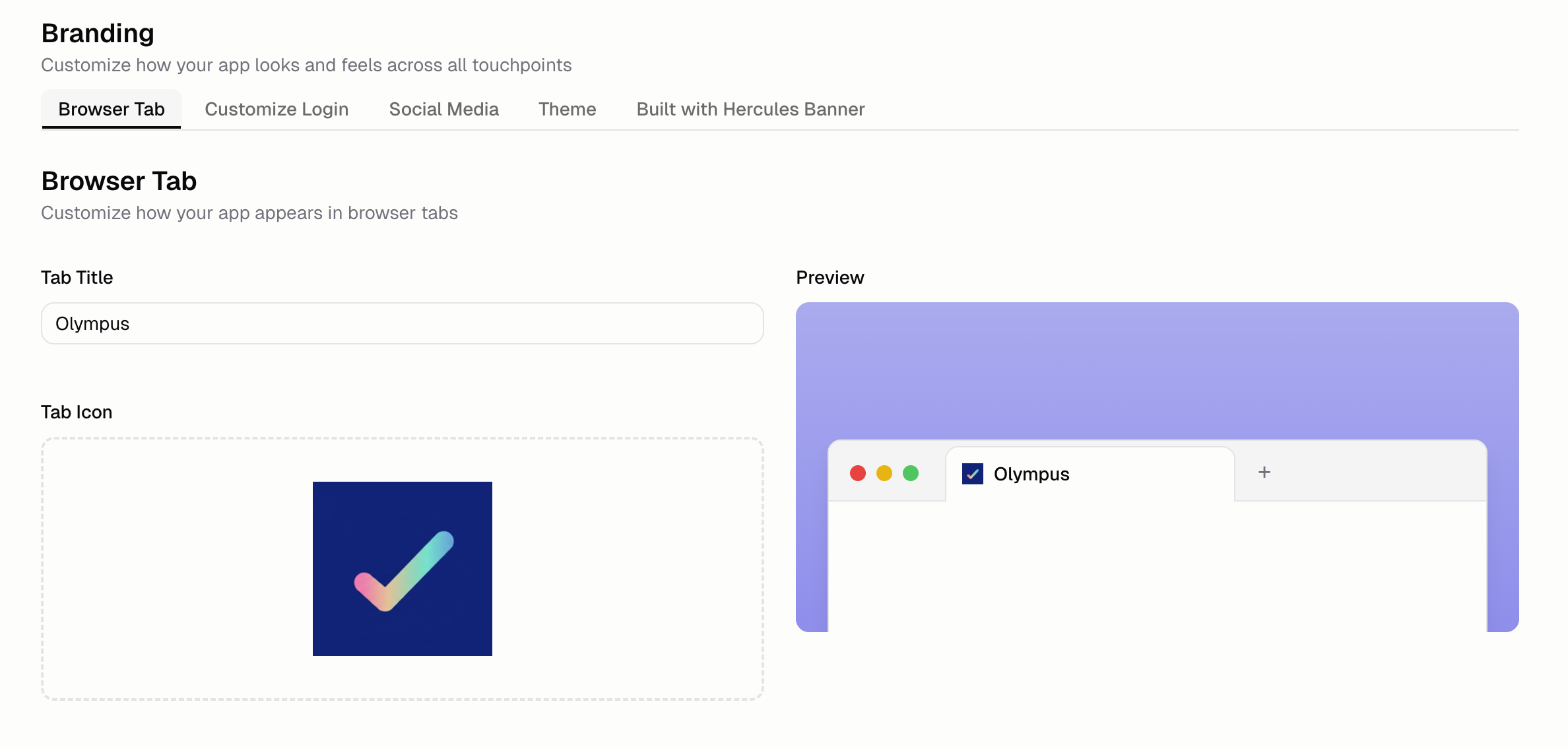
## Customize Browser tab
Customize how your app appears in browser tabs. Set your:
* **Tab title:** The text shown in the browser tab
* **Favicon:** The small icon next to the tab title
## Customize Auth Portal & Authentication email branding
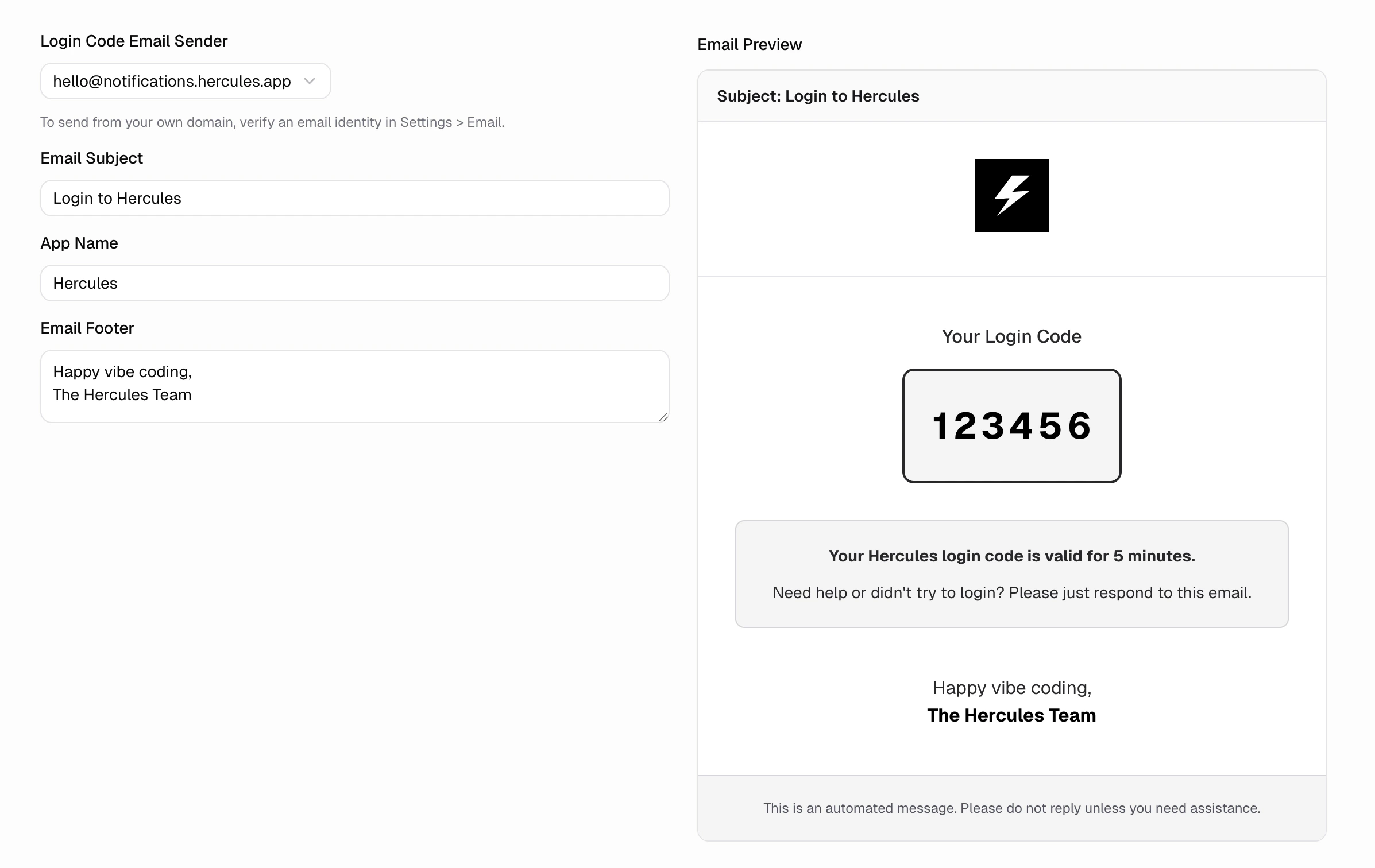
Customize the look of your auth portal and transactional emails. Go to **Branding & SEO** → **Customize Auth Portal**. Your branding is applied to:
* Auth portal appearance (logo, colors)
* Login method toggles (Google, Apple, Microsoft, LinkedIn, email codes, email and password)
* Auth portal domain (`auth.yourdomain.com`)
* Login code and password reset emails
See [Customize Auth Portal](/apps/users-auth/customize-auth-portal) for full details.
## Customize Social Media Previews (Open Graph Images)
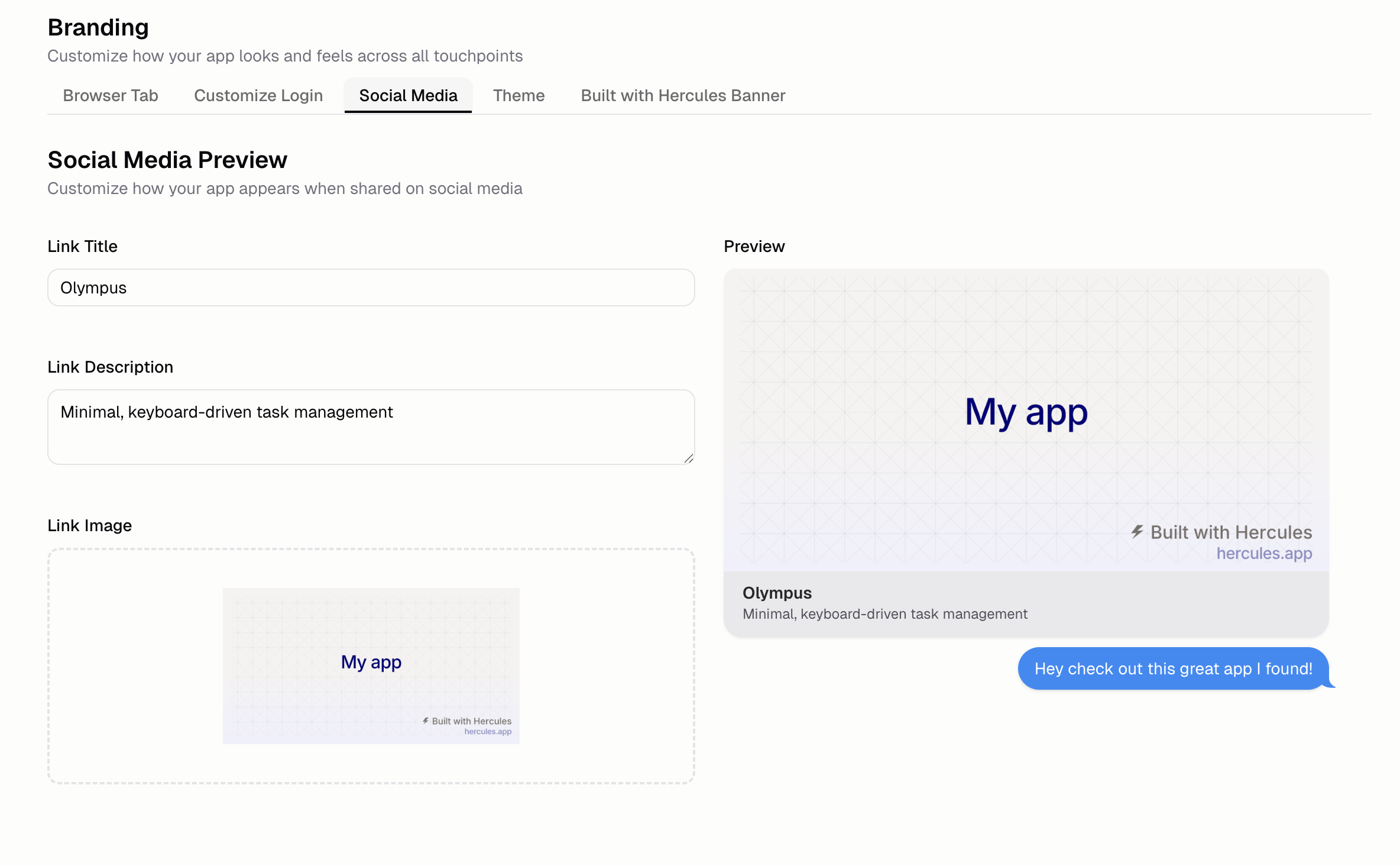
Control the preview image that shows up when you share your app on social media like Instagram, Twitter/X, Facebook, Whatsapp, iMessage, and more.
Set the:
* **Title:** Headline when shared
* **Description:** Summary text below the title
* **Image:** Preview thumbnail
## Built with Hercules badge
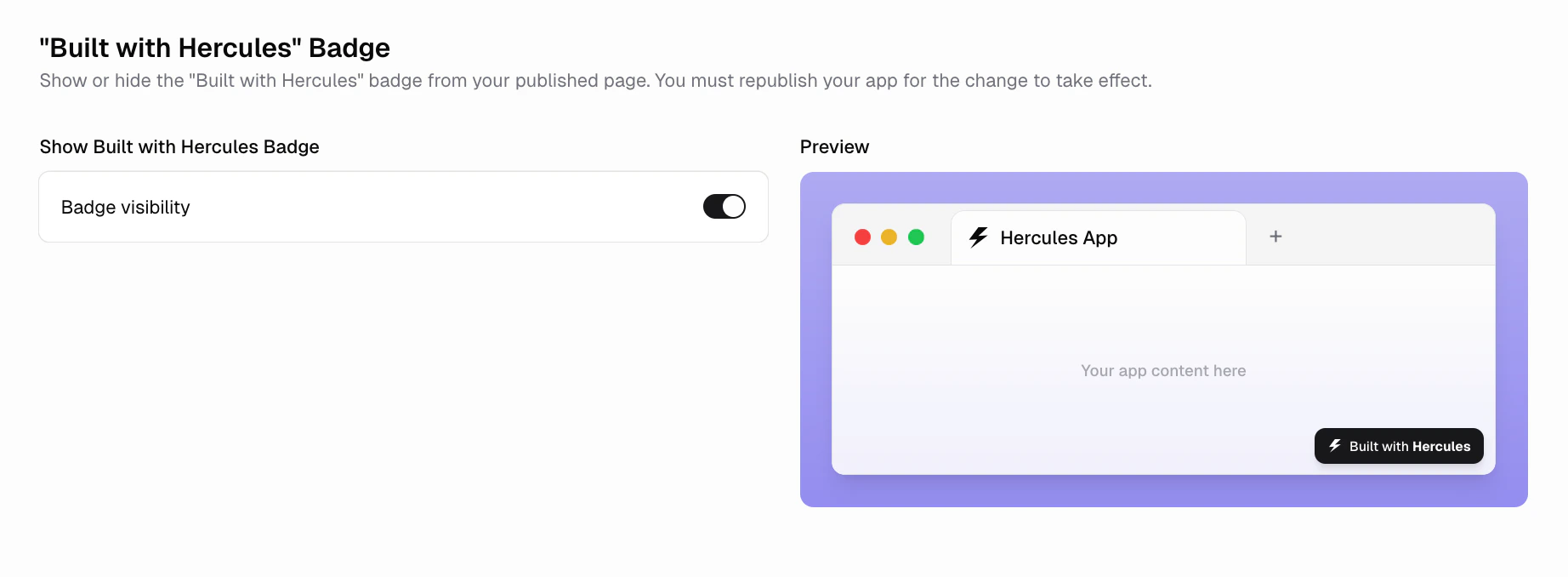
Free plans show a small "Built with Hercules" badge on all published sites. You can hide this badge by upgrading to a paid plan.
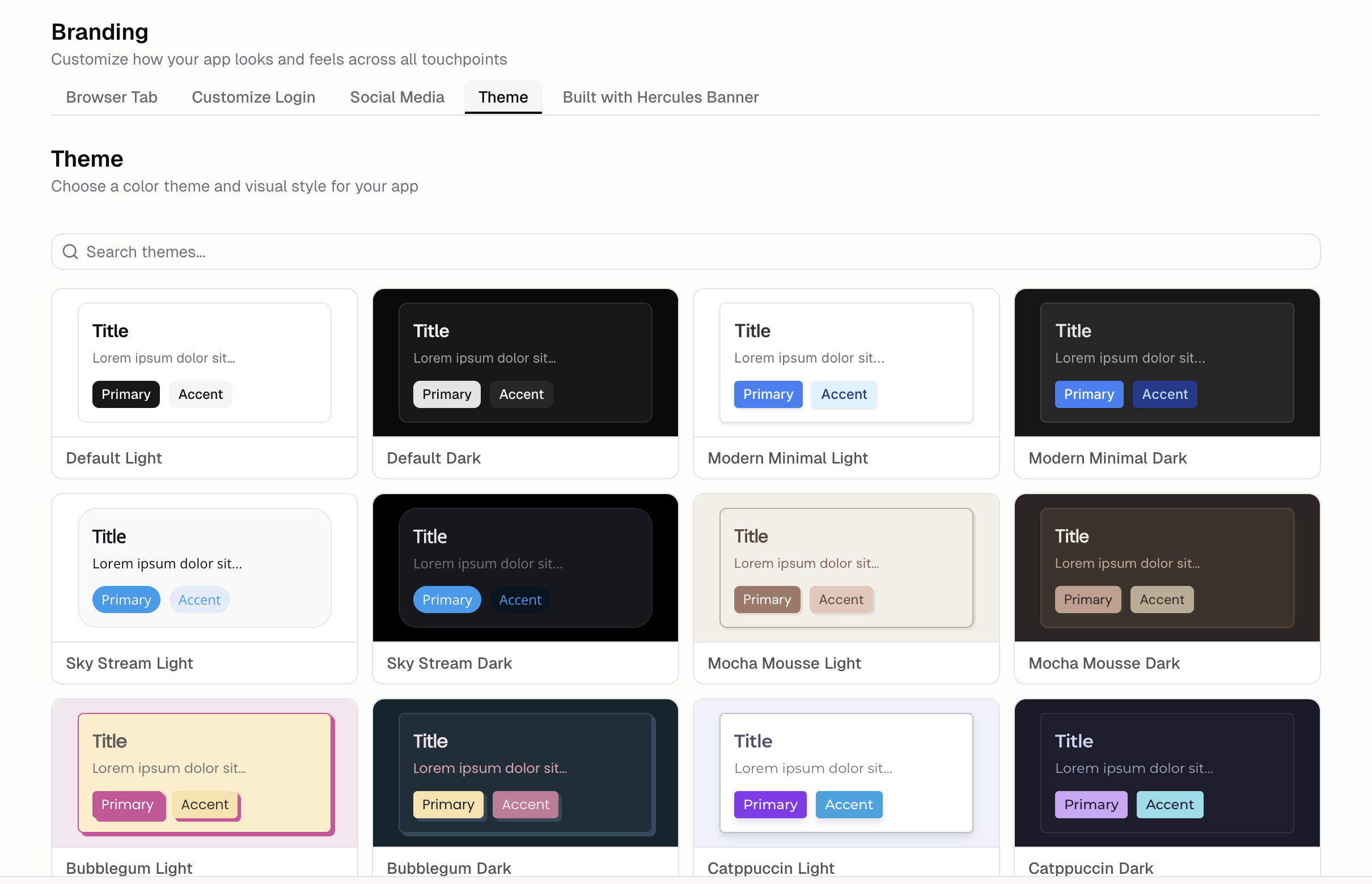
## Customize the Theme
You can ask Hercules to customize your apps theme. However, you can also choose one of 20 preset themes. Themes customize:
* Primary and accent colors
* Light and dark mode options
* Font choices
* Button styles
## Improve SEO
Hercules handles the following automatically:
* Mobile-friendly design
* Fast page loads
* Clean HTML structure
* A default `robots.txt` so crawlers can index your site
* SSL encryption
To run a full audit, Ask Hercules
```text SEO improvement prompt wrap theme={}
Do an SEO audit of my site. Give me all your suggestions on how to improve it in priority order
```
### How do I submit my website to Google and other search engines for indexing?
First, ask Hercules to add a sitemap to your site:
```text Add a sitemap wrap theme={}
Add a sitemap.xml to my site that lists all my pages, and reference it from robots.txt
```
Once Hercules adds it, view it by adding `sitemap.xml` to the end of your domain (e.g. `https://yourdomain.com/sitemap.xml`). Each search engine has its own webmaster tools and method for submitting sitemaps. Verify your domain ownership with each engine before submitting.
**Submit sitemap:**
1. Go to [Google Search Console](https://search.google.com/search-console)
2. Select your site
3. Select **Sitemaps**
4. Enter `sitemap.xml` under **Add a new sitemap**
5. Click **Submit**
**Submit individual URL:**
1. Enter the full URL (including `https://www`) in the search bar at the top
2. Press Enter
3. Click **Request Indexing**
**Submit sitemap:**
1. Go to [Bing Webmaster Tools](https://www.bing.com/webmasters/)
2. Select your site
3. Click **Sitemaps**
4. Click **Submit sitemap**
5. Enter your full sitemap URL (e.g. `https://yourdomain.com/sitemap.xml`)
6. Click **Submit**
**Submit individual URL:**
1. Click **URL submission**
2. Click **Submit URLs**
3. Enter the full URL (including `https://www`)
4. Click **Submit**
**Submit sitemap:**
1. Go to [Yandex Webmaster Tools](https://webmaster.yandex.com/)
2. Select your site
3. Click **Indexing**
4. Select **Sitemap tools**
5. Enter your full sitemap URL under **Add sitemap file**
6. Click **Add**
**Submit individual URL:**
1. Click **Indexing**
2. Select **Reindex pages**
3. Enter the full URL (including `https://www`)
4. Click **Send**
**Submit sitemap:**
1. Go to [Naver Webmaster Tools](https://searchadvisor.naver.com/)
2. Select your site
3. Click **요약** (Request)
4. Select **사이트맵 제출** (Submit your sitemap)
5. Enter `sitemap.xml` under **사이트맵 URL 입력** (Enter the sitemap URL)
6. Click **확인** (Confirm)
**Submit individual URL:**
1. Click **요약** (Request)
2. Select **웹 페이지 최적화** (Web page collection)
3. Enter the URL slug under **수집 요청 URL 입력** (Enter the collection request URL)
4. Click **확인** (Confirm)