> ## Documentation Index
> Fetch the complete documentation index at: https://hercules.app/docs/llms.txt
> Use this file to discover all available pages before exploring further.
# Capture Tools
> Screenshot, annotate, screen record, and select elements to give Hercules precise visual context for changes.
Use capture tools to give Hercules precise visual context about what you want to change. Visual context eliminates ambiguity. Instead of describing where a button is, just show it.
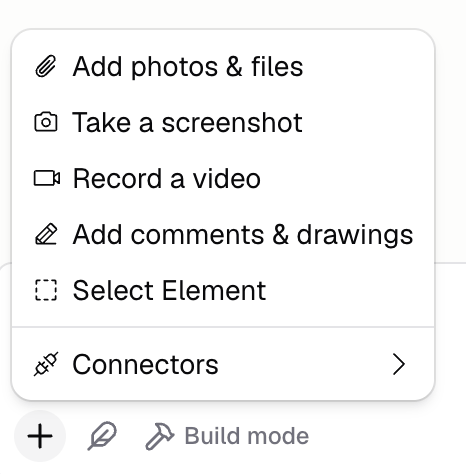
Access capture tools from the **+** button in the input bar. Hercules has 4 Capture Tools:
* **Screenshot**: Take a screenshot of part of your app to reference specific UI
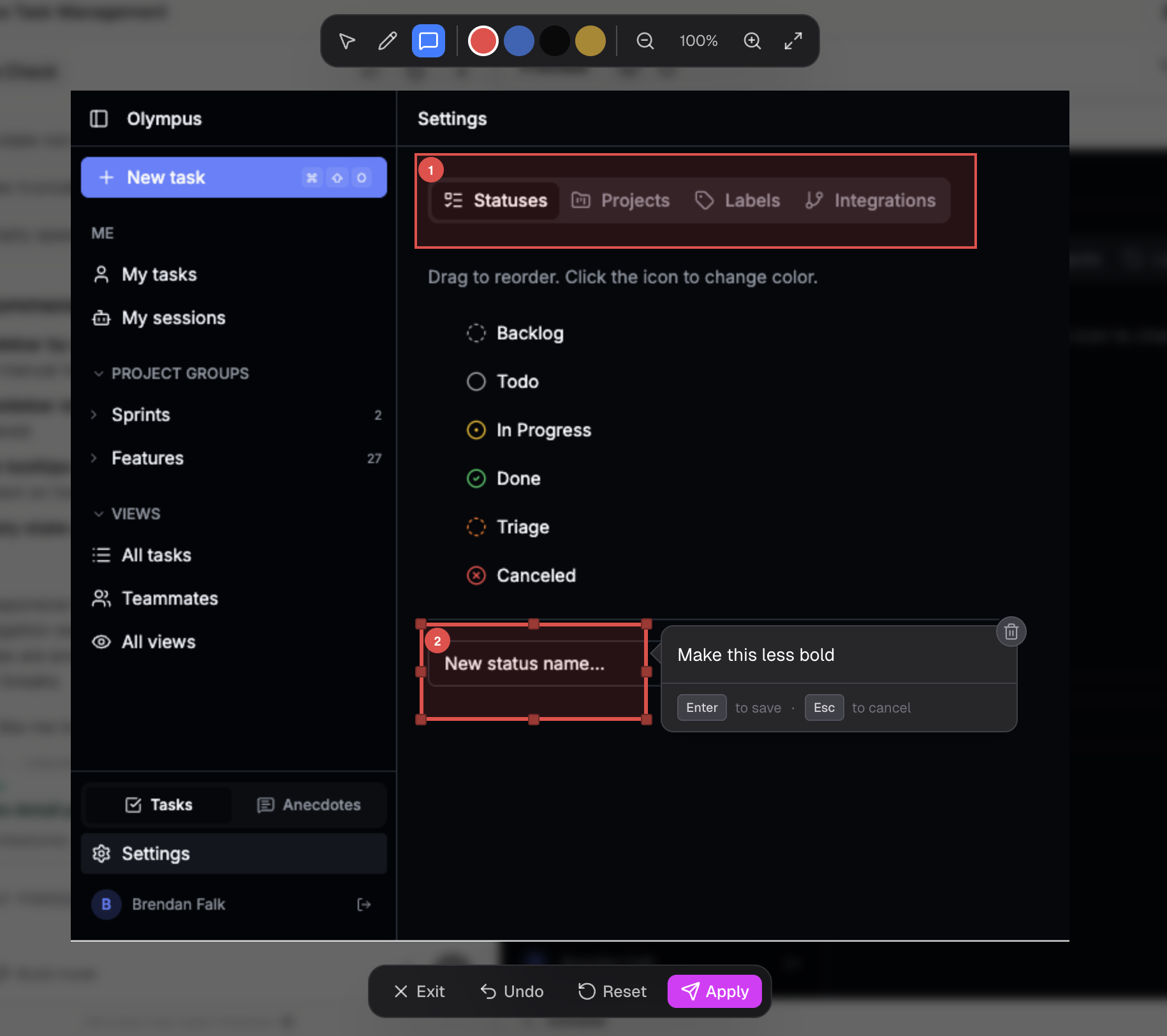
* **Annotate**: Add comments, boxes, arrows, and notes to a screenshot of your app
* **Screen record**: Record a video showing a bug or desired interaction
* **Select element**: Point the Agent to a specific HTML element
### Screenshot
Screenshots allows you to the Agent visual context so it knows exactly what you're referring to.
### Annotate
Markup a screenshot of your app with comments, boxes, arrows, and drawings. Annotations make it extremely clear what changes you want to make and are exceptionally useful for quick UI and copy changes.
### Screen Record
Show a bug or desired interaction as a video. Screen recordings help the Agent understand timing, animations, and multi-step flows.
### Select Element
Point the Agent at the exact HTML element. This is useful when you want to change a specific element without ambiguity.
### FAQ
Yes, you can use your own. However, Hercules compresses its screenshots so it reduces credit
consumption.
Screenshot captures an image of your app. Select element identifies a specific HTML element in
the code.