> ## Documentation Index
> Fetch the complete documentation index at: https://hercules.app/docs/llms.txt
> Use this file to discover all available pages before exploring further.
# Buy a domain in Hercules
> Buy and register domains inside Hercules. Auto-connected to your app. Manage DNS records. No external setup.
Buy and register domains directly inside Hercules. They are automatically connected to your app.
### How do I purchase a domain?
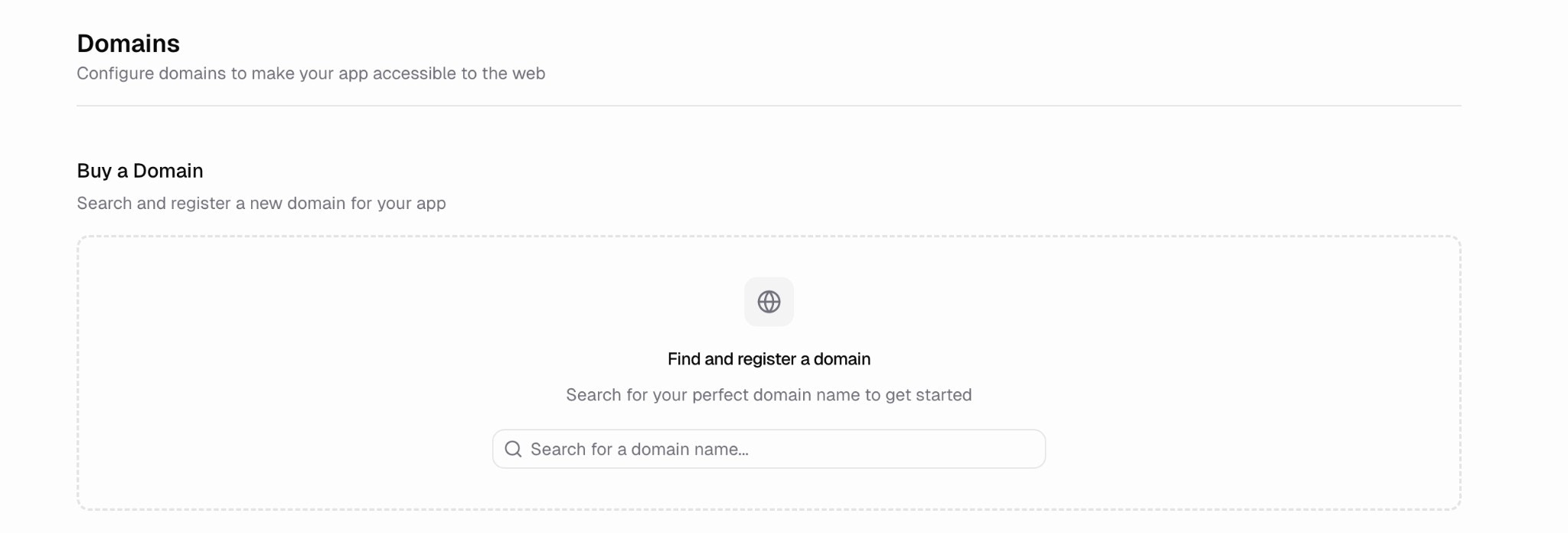
1. Click the **Domains** tab in the sidebar
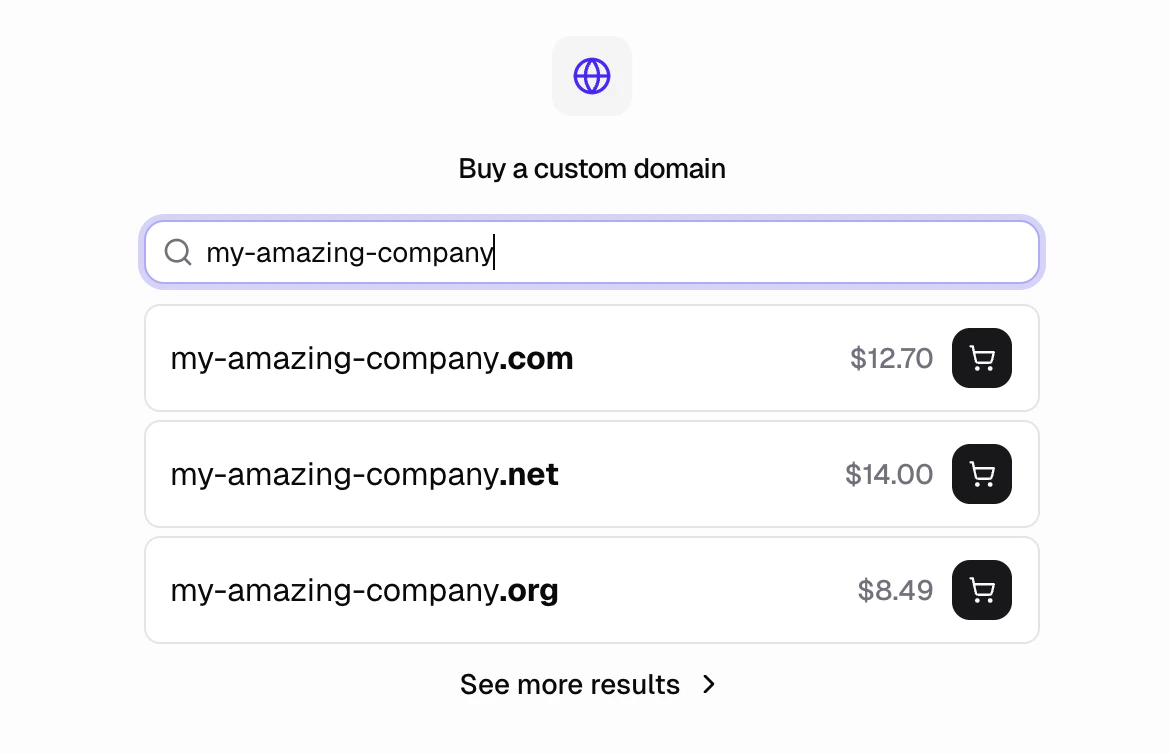
2. Search for a domain name in the **Buy a Domain** search box
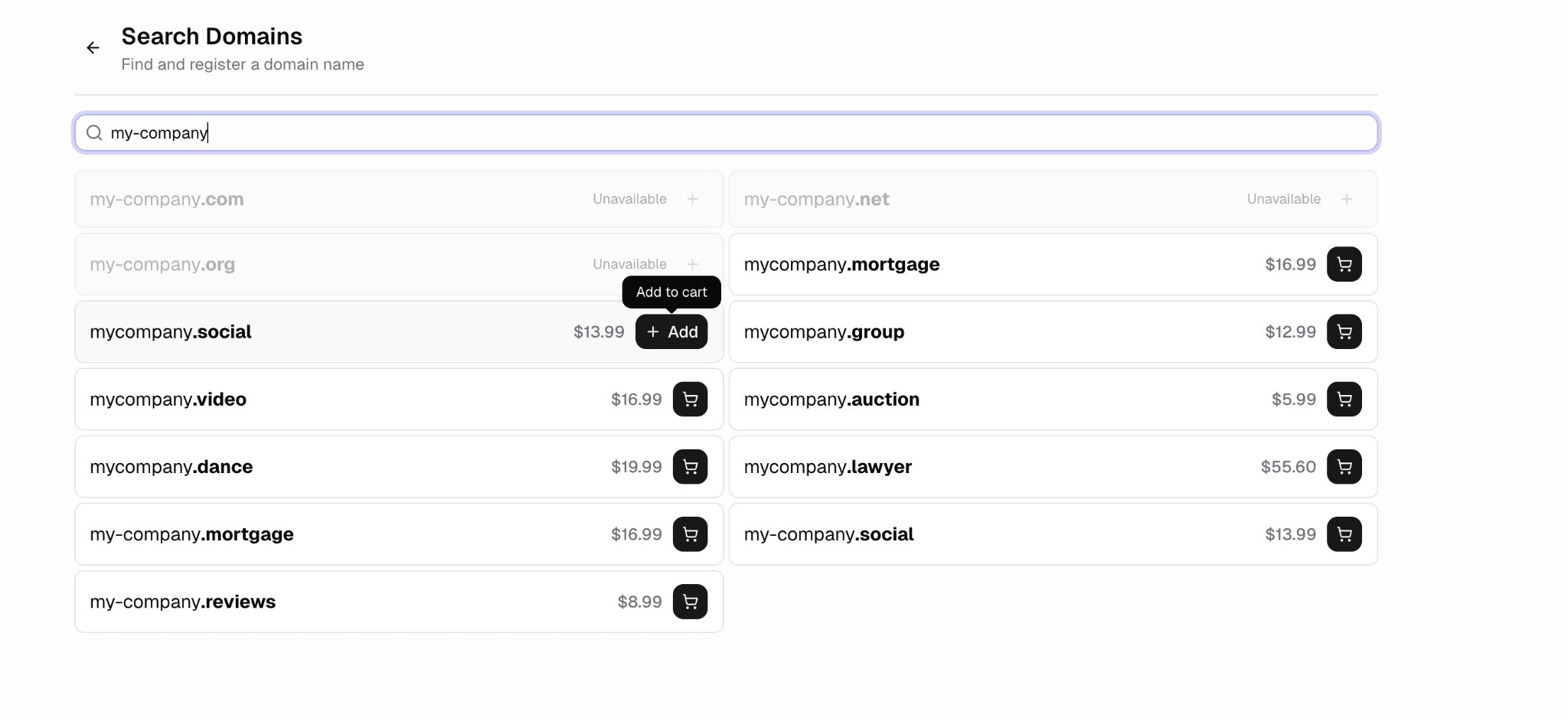
3. Click "See more results" to browse all available options
4. Add domains to your cart using the cart icon
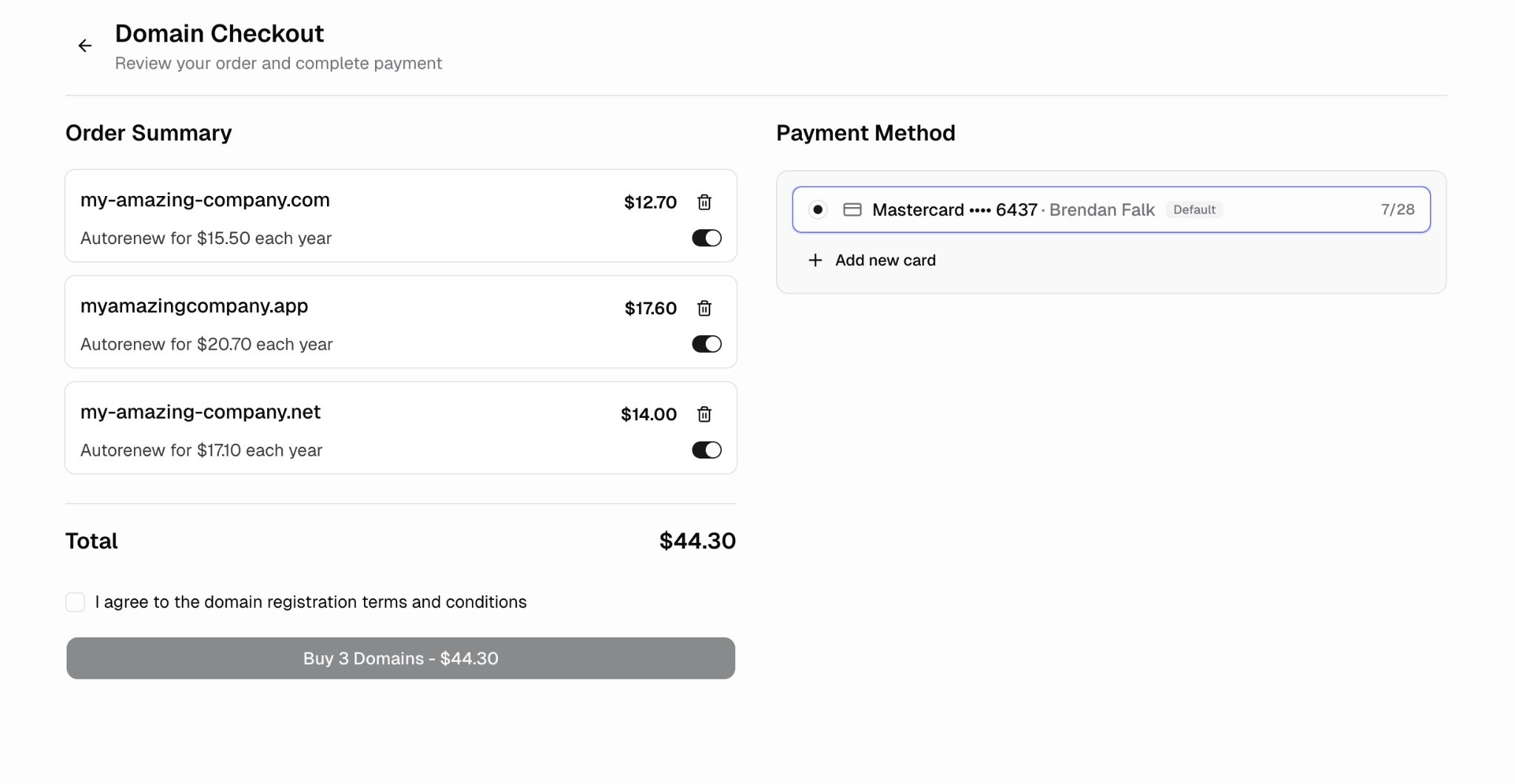
5. Review your order and complete payment
Some domains may show as **Unavailable** if they are already registered by someone else. Available domains show their price and can be added to your cart.
### How do I connect it to my app?
Domains purchased through Hercules are automatically connected to your app. No DNS configuration required.
### How much are domains?
Prices vary by domain extension (TLD). Common examples:
* `.com` domains start around \$12.70/year
* `.net` domains start around \$14.00/year
* `.app` domains start around \$17.60/year
* `.shop` domains start around \$3.99/year
Each domain shows its price in the search results. Domains renew annually, and the renewal price is shown on the checkout page.
You can toggle auto-renewal on or off for each domain during checkout.
### How do I manage DNS records?
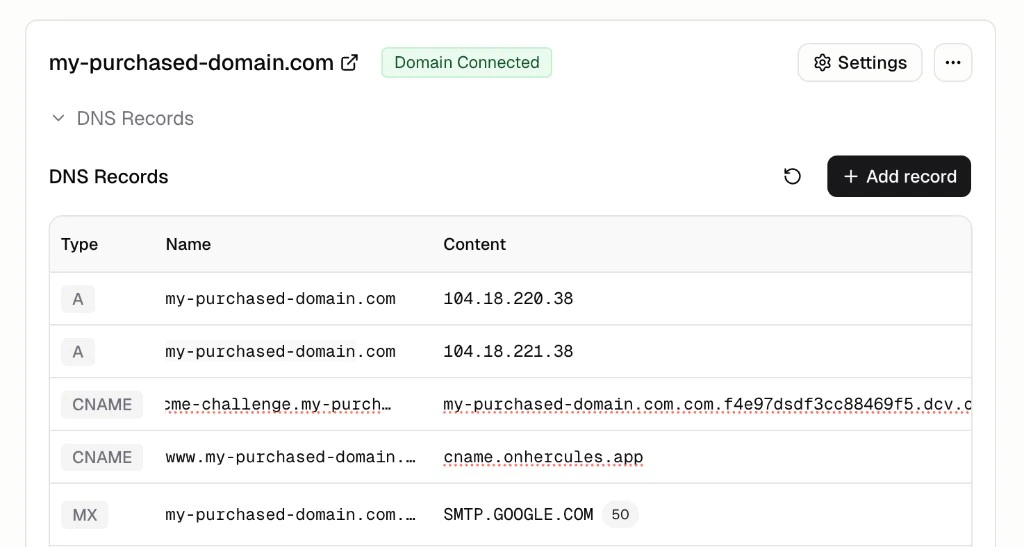
Open the **Domains** tab and click on your domain in the **Purchased Domains** section. You can view, edit, and delete all existing DNS records from here.
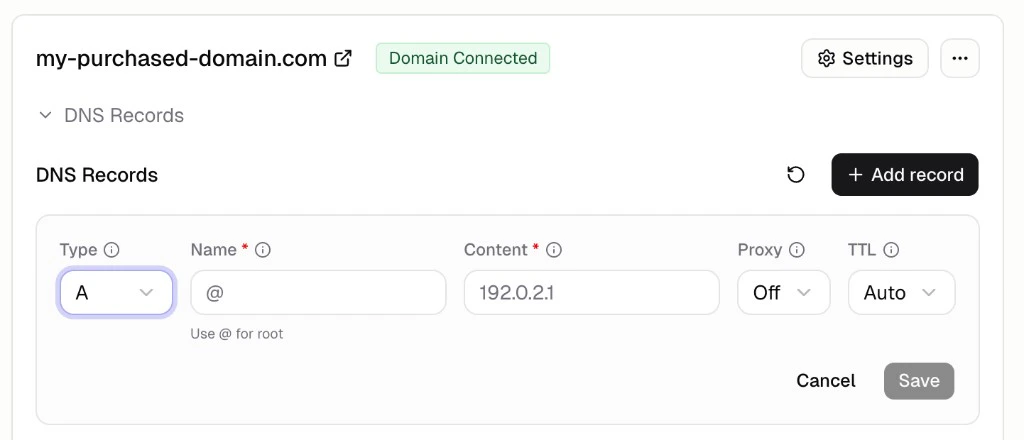
To add a new record, click **+ Add record** and choose from the supported record types:
* **A** and **AAAA** (IPv4 and IPv6 addresses)
* **CNAME** (aliases)
* **MX** (mail servers)
* **SRV** (service records)
Custom nameservers are not currently supported. Your purchased domain uses Hercules nameservers by
default.
## Additional FAQ
You own the domain. If you leave Hercules, you can transfer your domain to another registrar
and point it wherever you like.
**Buying a domain** lets you register a brand new domain directly in Hercules. It's
automatically configured and ready to use with no DNS setup.
**Connecting an existing domain** lets you use a domain you already own from another registrar
(like GoDaddy or Namecheap). You'll need to configure DNS records to point it to Hercules.
See [Connect an existing domain](/apps/publish/connect-existing-domain) for setup instructions.
Yes. Add as many domains as you want to your cart and purchase them together in a single
checkout.
1. Go to the **Emails** tab
2. Input your domain
3. Add the CNAME records shown there to your
domain's DNS
See [Hercules Email DNS setup](/apps/emails#how-do-i-verify-my-domain) for the
full steps.
You need to add the relevant MX DNS records for your email provider.
1. Go to **Domains** → your purchased domain → Manage DNS → **+ Add record**.
2. Choose **MX** and enter the server values from your provider (e.g. Gmail, Outlook, Zoho).
You will likely have to add multiple records. Each provider has different MX records. Check their docs for the exact values or ask Hercules for help.
Go to **Domains** → your domain in **Purchased Domains**. View and edit records in the table.
Click **+ Add record** to add. Click the delete icon on a row to remove it.