> ## Documentation Index
> Fetch the complete documentation index at: https://hercules.app/docs/llms.txt
> Use this file to discover all available pages before exploring further.
# Visual Edit
> Edit text, colors, layout, and fonts by clicking elements. Best for small tweaks; use chat for larger changes.
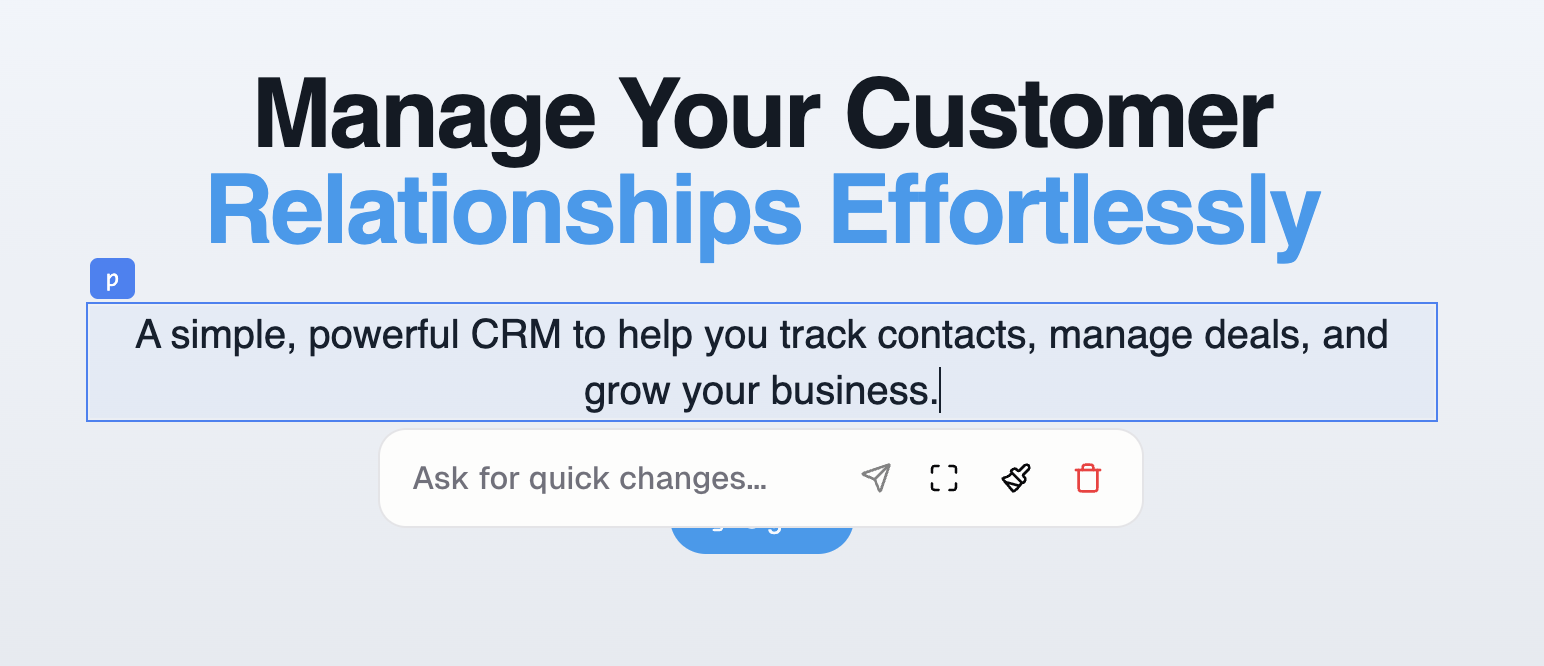
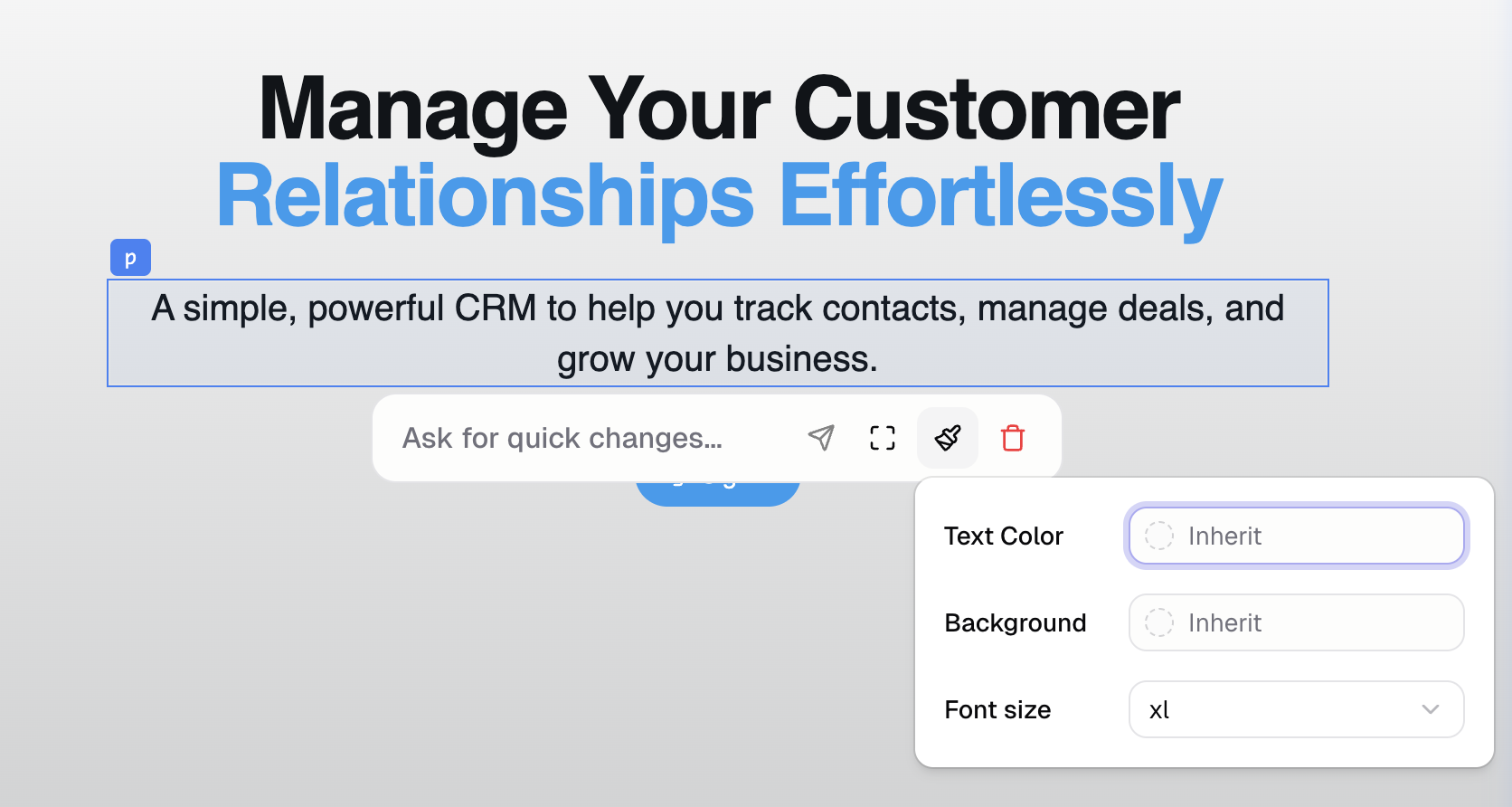
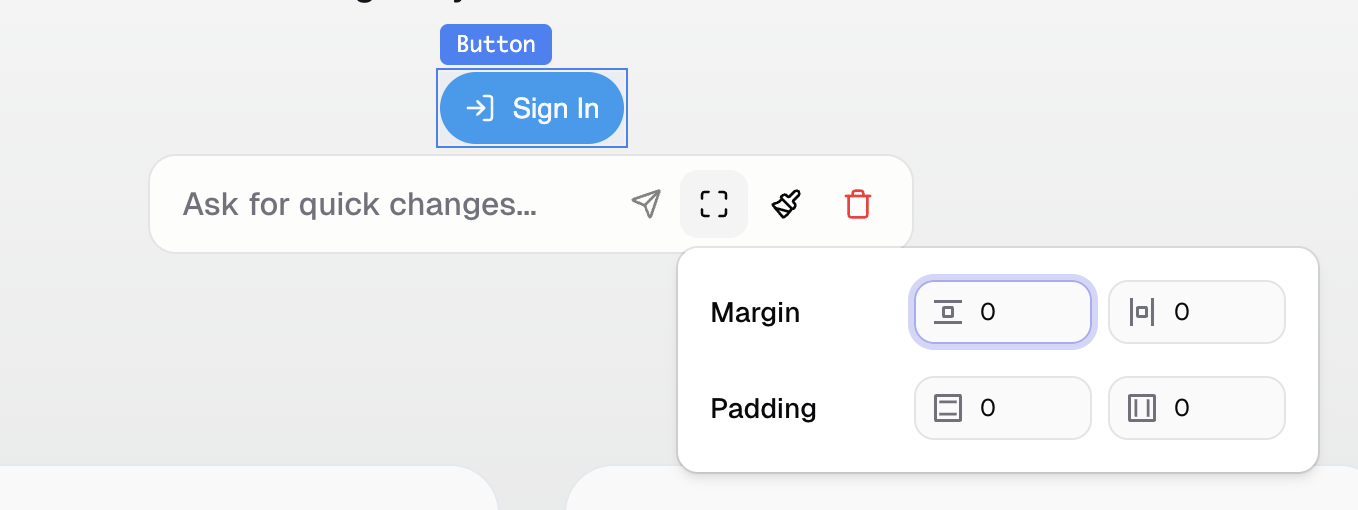
Visual edit lets you change your app's text and UI by clicking on elements and editing them directly. Edit colors, layout, fonts, and text directly.
Select the **Visual Edit** tab to use it
### What can I edit?
* **Text:** Edit copy directly on the page
* **Colors:** Background, text, borders
* **Layout:** Spacing, padding, margins, alignment
* **Fonts:** Size, weight, family
### When should I use the visual edit?
Visual edit is best for **small, fast tweaks:**
* Fixing a typo
* Adjusting spacing
* Changing a color
* Updating button text
For larger changes (new sections, layout restructures, new features), chat with Hercules instead.
### How do I save changes?
Visual edits are not saved automatically. You must click the "save changes" button at the bottom of the preview for changes to be saved.
### What's the difference between Visual Edit and Capture Tools- Select Element?
| Tool | Purpose |
| ---------------------------------- | -------------------------------------------------------------- |
| **Visual Edit** | Directly edit the text and UI (make changes) |
| **Capture Tools - Select Element** | Give Hercules more context on what element you want it to edit |
### Additional FAQ
Yes. Click the "revert" button if you haven't saved the changes yet. Alternatively use [version control](/apps/version-control) to revert to a previous state.
Most basic text can be edited in visual edit. However, some text elements are more complicated
(the text is dynamically generated or is part of a bigger component) and so can currently only be
edited by Hercules AI.
Most UI elements can be edited. Some system components or dynamically-generated content may have limited editability.