> ## Documentation Index
> Fetch the complete documentation index at: https://hercules.app/docs/llms.txt
> Use this file to discover all available pages before exploring further.
# Hercules MCP
> Use the Hercules MCP to create, build, and manage Hercules apps from ChatGPT, Claude, Cursor, and other AI assistants. Connect from the ChatGPT Apps directory or with our MCP URL.
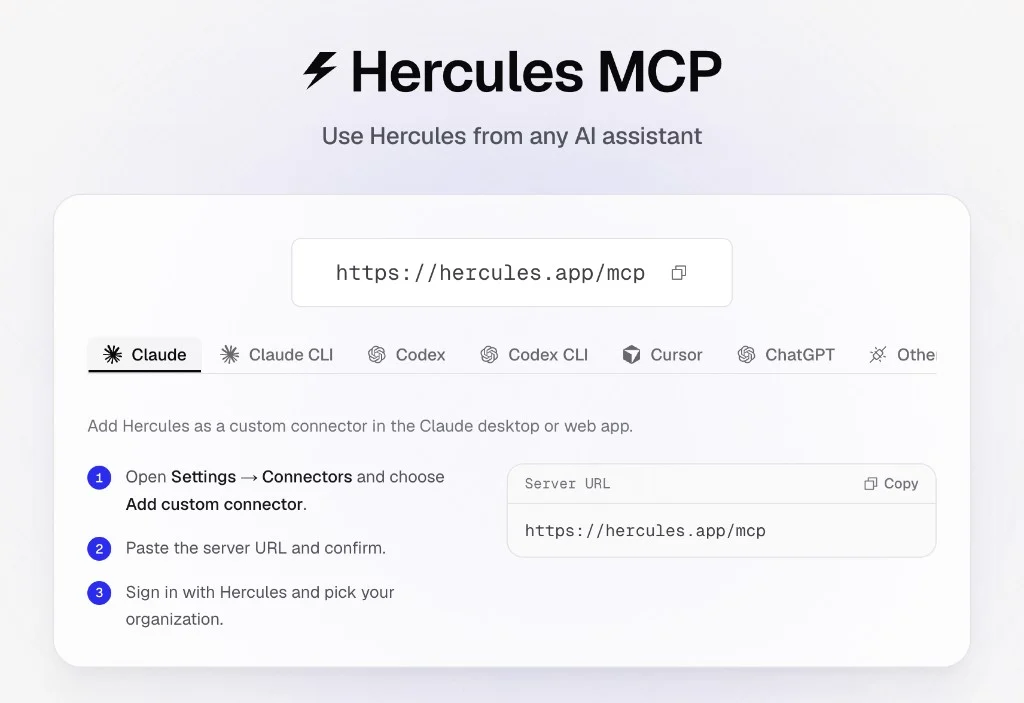
The Hercules MCP lets you use Hercules from ChatGPT, Claude, Cursor, Codex, and other AI assistants. In ChatGPT, connect from the [Apps directory](https://chatgpt.com/apps/hercules/asdk_app_6a10e1e330788191b7a6af850f2cc827). In other assistants, add `https://hercules.app/mcp` as a custom MCP server.
```
https://hercules.app/mcp
```
### What can I do with the Hercules MCP?
The Hercules MCP lets you do almost everything you can do from inside the Hercules App Builder. You can
| Capability | What it does |
| ------------------------ | --------------------------------------------------------------------------- |
| **Create apps** | Build a new Hercules app or website from a description. |
| **Edit apps** | Send instructions to Hercules to change an existing app. |
| **Publish apps** | Publish an app and get its Published URL back. |
| **List and read apps** | Browse your apps and read details: title, description, slug, Published URL. |
| **Browse conversations** | List and read the chat threads behind each app, with search. |
| **Check your org** | See your organization, plan, remaining credits, and recent apps. |
### What are some example prompts?
```text Build a new app wrap theme={}
Build a CRM for my roofing company to track leads, quotes, and scheduled jobs, then publish it in Hercules.
```
```text Edit an existing app wrap theme={}
Open my "Sales CRM" Hercules app and add a pipeline view grouped by deal stage.
```
### How do I set it up?
Copy the server URL into your assistant, then sign in. The first tool call prompts you to connect. In ChatGPT, open the [Hercules app page](https://chatgpt.com/apps/hercules/asdk_app_6a10e1e330788191b7a6af850f2cc827) and click **Connect** instead.
Hercules is live in the ChatGPT Apps directory.
Go to the [Hercules app in ChatGPT](https://chatgpt.com/apps/hercules/asdk_app_6a10e1e330788191b7a6af850f2cc827), or search **Hercules** on
[chatgpt.com/apps](https://chatgpt.com/apps).
Click **Connect**, then sign in with Hercules and pick your organization.
Ask ChatGPT to create or edit an App. Your work shows up in the Hercules App Builder.
Need a custom MCP connector instead? Turn on developer mode under **Settings → Connectors**,
choose **Create**, and paste `https://hercules.app/mcp`.
Open **Settings** → **Connectors** and choose **Add custom connector**.
Enter `https://hercules.app/mcp` and confirm.
Sign in with Hercules and pick your organization.
Prefer the command line? In Claude Code, run:
```bash theme={}
claude mcp add --transport http \
hercules https://hercules.app/mcp
```
Go to **Cursor Settings** → **MCP** → **Add new server**.
Add the following to `~/.cursor/mcp.json`:
```json ~/.cursor/mcp.json theme={}
{
"mcpServers": {
"hercules": { "url": "https://hercules.app/mcp" }
}
}
```
Reload Cursor, then finish the sign-in prompt.
Run **MCP: Add Server** from the Command Palette, pick **HTTP**, and paste the URL. Or edit
`.vscode/mcp.json` directly:
```json .vscode/mcp.json theme={}
{
"servers": {
"hercules": {
"type": "http",
"url": "https://hercules.app/mcp"
}
}
}
```
Start the server and sign in with Hercules.
Open `~/.codex/config.toml` and add the Hercules server entry:
```toml ~/.codex/config.toml theme={}
[mcp_servers.hercules]
url = "https://hercules.app/mcp"
```
Restart Codex and authorize with Hercules.
Using a client that isn't listed? Any MCP client that supports a remote HTTP server with OAuth
works. Point it at `https://hercules.app/mcp` and follow your client's steps for adding a remote
MCP server.
### Additional FAQ
Hercules is published in the [ChatGPT Apps directory](https://chatgpt.com/apps/hercules/asdk_app_6a10e1e330788191b7a6af850f2cc827). Any MCP
client that supports a remote, OAuth-secured HTTP server can also connect with
`https://hercules.app/mcp`. Setup is documented above for ChatGPT, Claude (Desktop and Claude
Code), Cursor, VS Code, and Codex.
No. Sign-in happens through OAuth in your browser. There are no keys to generate, copy, or rotate.
The connection is scoped to the single organization you pick during sign-in, and limited to
managing your Hercules apps and their conversations. You approve the access when you sign in, and
you can disconnect it at any time from your client.
Disconnect the Hercules connector in your client, then add it again. On the next sign-in, choose
the organization you want. Each connection is tied to one organization.
Connecting the MCP server is free. Building and editing apps uses the AI credits of the
organization you connected, the same as building in the Hercules App Builder. See [AI
Credits](/platform/billing/ai-credits) for details.
Yes. The MCP server is another way in. Apps you create or edit from your assistant appear in the
Hercules App Builder, and changes you make in the Hercules App Builder are visible to your
assistant.
Reload or restart your client after adding the server, and make sure you finished signing in. The
tools become available once the connection is authorized. Check that the URL is exactly
`https://hercules.app/mcp`.
Creating or editing an app starts a build with Hercules. Your assistant tracks progress and
shares the Published URL once the build finishes. Larger apps take longer, the same as in the
Hercules App Builder.