
- Create new chats for each new task: AI agents perform worse in longer conversations
- Use Plan Mode / Debug Mode: Have Hercules interview you to better understand your intent before making changes
- Include screenshots & videos with capture tools: Share visual context like screenshots, annotations, and video recordings to improve accuracy
- Tell Hercules the end result you want, not how to get there: Tell Hercules your requirements. Then let it work out how to get there
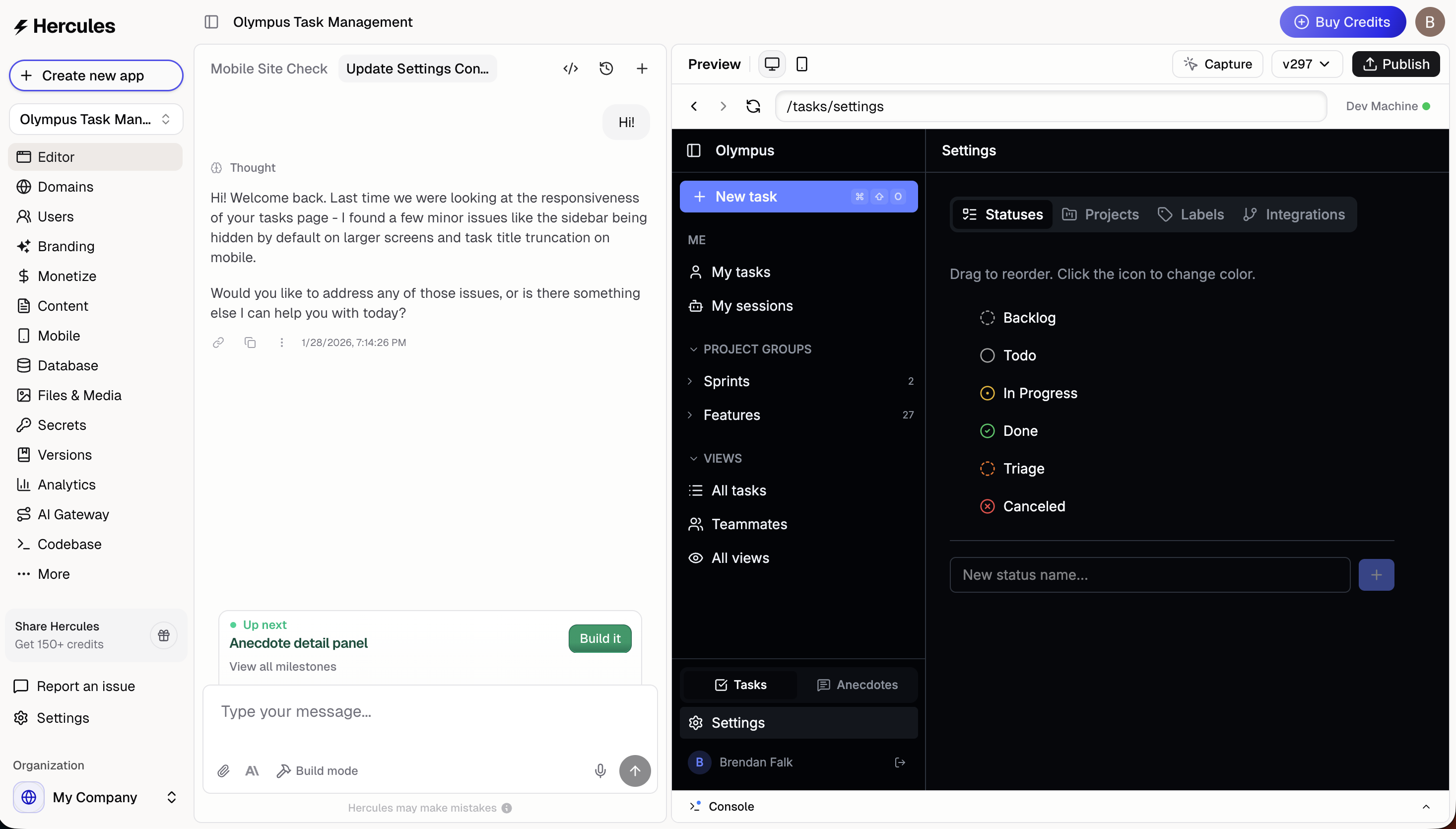
1. Create new chats for each new task
AI agents perform worse in longer conversations. Longer conversations accumulate context that can confuse the Agent and cause it to make mistakes. Start a new conversation for new tasks like new features, bug fixes, or making changes to separate parts of the app Use the cmd+shift+O hotkey to quickly create a new chat. Learn more in multi-agent
2. Use Plan Mode / Debug Mode
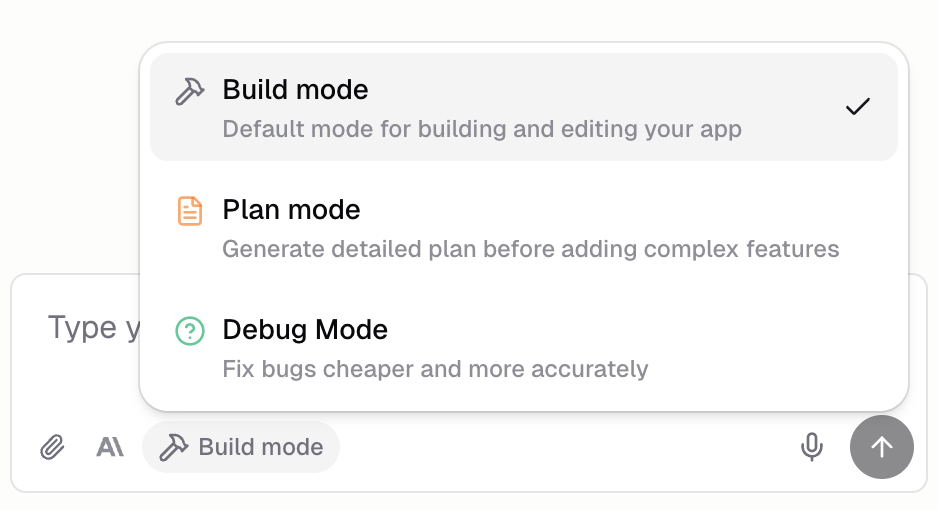
Hercules offers different agent modes to optimize the agent for specific tasks.- Plan mode is best for building new features and large changes. It interviews you to understand your intent, confirms requirements, then creates a detailed implementation plan.
- Debug mode is best for fixing bugs and when build mode isn’t solving your issue. It interviews you to understand the issue, researches the codebase, forms hypotheses, then prioritizes the fix.
3. Include screenshots & videos with Capture tools
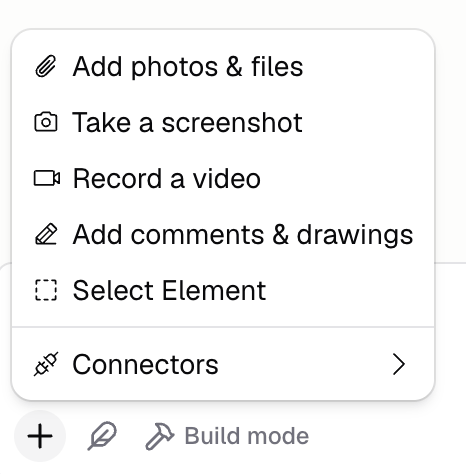
Hercules sees code, not the visual user interface that you see. It may think it implemented something correctly when in reality it can’t perfectly see what it’s done. Use Capture tools from the + button in the input bar to give the Agent precise visual context of what you’re seeing- Screenshot: show the exact UI you want to change
- Annotate: annotate a screenshot with comments and drawings
- Screen record: create a video of you reproducing a bug or interaction that doesn’t work the way you expect
- Select element: select a specific HTML element that isn’t working as you expect
4. Tell Hercules the end result you want, not how to get there
The Agent performs best when you tell it the end result you want. Don’t tell it how to get there, tell it your end goal. If you over-specify implementation, you fight against better solutions it would choose. We recommend you give Hercules instructions in the format of- “Users should be able to complete checkout in 2 clicks.”
- “Users should be shown a short, simple, seamless onboarding experience after login”
- “Users should be able to easily add or remove new contacts”
Summary
- Create new chats for each new task
- Use Plan Mode / Debug Mode
- Include screenshots & videos with Capture Tools
- Tell Hercules the end result you want, not how to get there
Additional FAQ
Hercules AI keeps failing. What should I do?
Hercules AI keeps failing. What should I do?
Should I talk to Hercules like I talk to a human?
Should I talk to Hercules like I talk to a human?
Don’t think of talking to AI like talking to a human. AI is not a human. Think of AI as a
statistical model. It takes your input, follows a mathematical pattern, and produces an output.
The output seems human, but it’s not. Because AI is not human, you need to use the tricks above
to get it to output the results you want.
Why do long conversations get less accurate over time?
Why do long conversations get less accurate over time?
Old context from earlier requests piles up. This context may no longer be relevant but still
influences the Agent’s decisions. Starting fresh removes stale context.
How do I give Hercules rules it remembers in every chat?
How do I give Hercules rules it remembers in every chat?
Add App Instructions from the Personalize tab. Hercules follows them on every chat for
that app, so they survive starting new chats. Use them to lock in decisions you don’t want undone
later, like design rules, integrations to keep wired up, or features that must keep working. You
can also set Personal Instructions (all your apps) or Organization Instructions (your
whole team).
Can I guarantee Hercules' accuracy?
Can I guarantee Hercules' accuracy?
No. AI is a novel technology. It will always make mistakes. The tricks above minimize errors but
cannot eliminate them.
Any other tricks?
Any other tricks?
- Have Hercules interview you. Let is draw the requirements out of you
- Ramble at Hercules in voice mode. Give it all relevant details. Then ask Hercules to summarize concisely for your approval
- Ask Hercules to stress test your proposal. What could go wrong?