
What is my app’s URL?
Your organization and app names are both in the address, so an app you are editing looks likehercules.app/org/your-team/app/your-app. The browser tab carries the app’s name too.

- Open each app in its own browser tab and read the tab titles to tell them apart
- Each tab holds its own organization, so opening a second one does not switch the first
- Send a teammate a link and it opens the app you meant
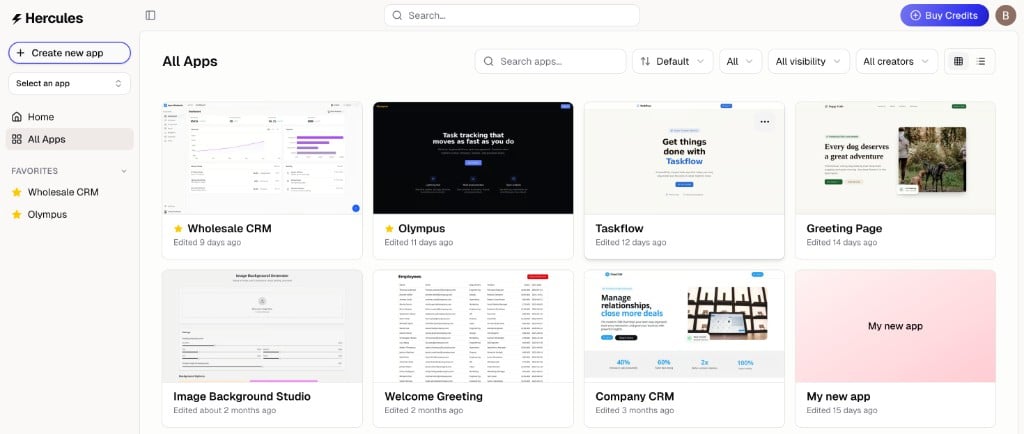
How do I see my apps?
How do I see my apps?
Your apps live at
hercules.app/org/your-team/app, where your-team is the organization you are in. Use the organization switcher at the bottom of the sidebar to move between them.hercules.app/dashboard/app also works and sends you to your default organization, which may not be the one you were last looking at.How do I transfer an app from one org to another?
How do I transfer an app from one org to another?
See Transfer an app for how to move an app to another organization.
How do I delete an app?
How do I delete an app?
There are two ways to delete an app, depending on your device.On desktop:
- Go to your organization’s app list
- Hover over the app and click the three dots (More)
- Click Delete
- Open the app
- Tap More → Danger Zone
- Tap Delete
How do I duplicate an app?
How do I duplicate an app?
- Go to your organization’s app list
- Hover over the app and click the three dots
- Click Duplicate