
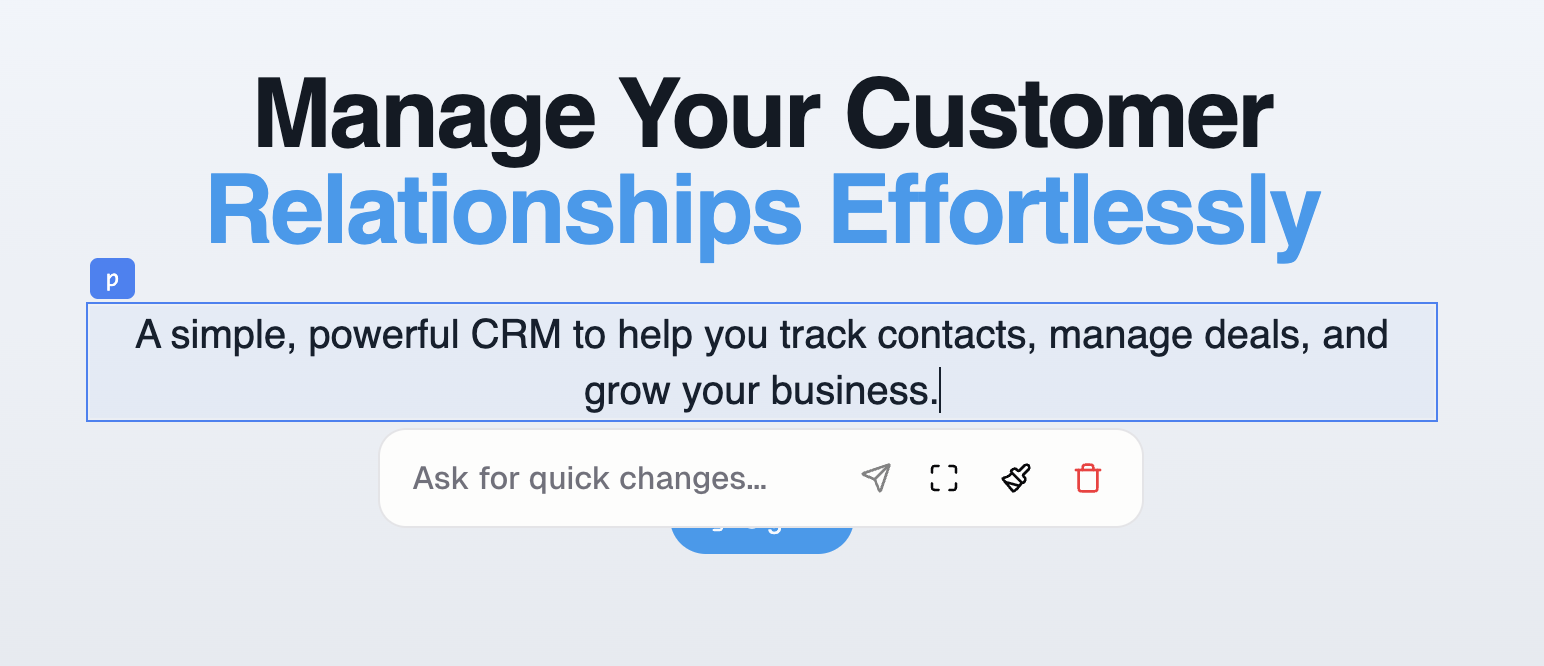
What can I edit?
- Text: Edit copy directly on the page
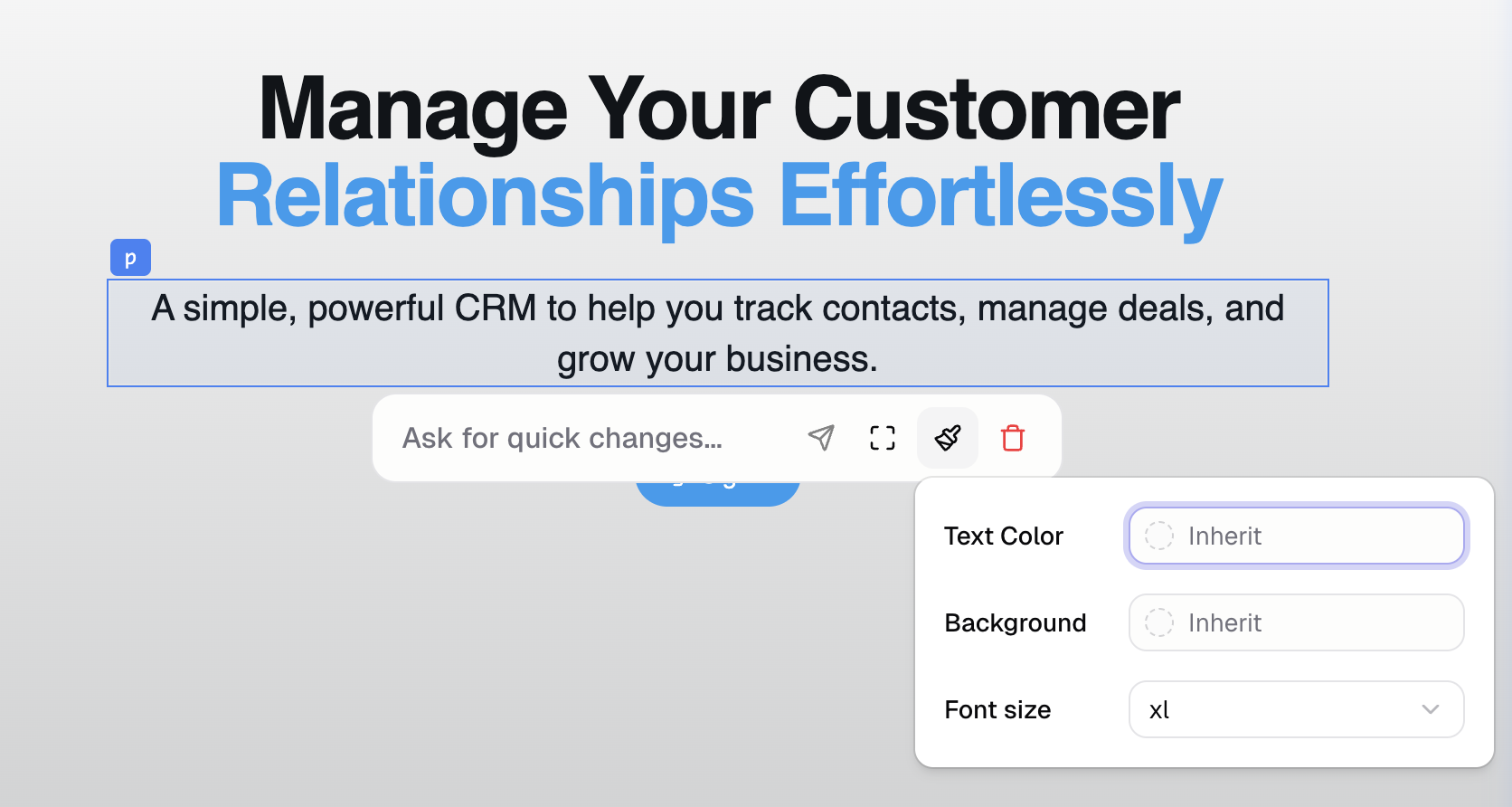
- Colors: Background, text, borders
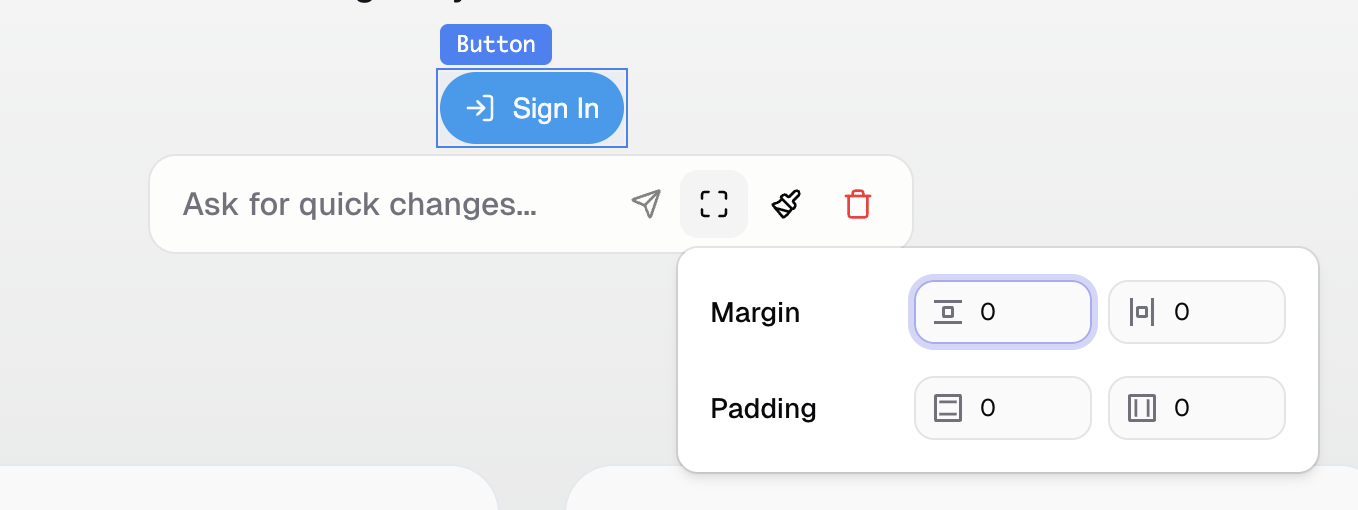
- Layout: Spacing, padding, margins, alignment
- Fonts: Size, weight, family
When should I use the visual edit?
Visual edit is best for small, fast tweaks:- Fixing a typo
- Adjusting spacing
- Changing a color
- Updating button text
How do I save changes?
Visual edits are not saved automatically. You must click the “save changes” button at the bottom of the preview for changes to be saved.
What’s the difference between Visual Edit and Capture Tools- Select Element?
Additional FAQ
Can I undo visual edit changes?
Can I undo visual edit changes?
Yes. Click the “revert” button if you haven’t saved the changes yet. Alternatively use version control to revert to a previous state.
Why can I edit some text but not others?
Why can I edit some text but not others?
Most basic text can be edited in visual edit. However, some text elements are more complicated
(the text is dynamically generated or is part of a bigger component) and so can currently only be
edited by Hercules AI.
Can I edit any element?
Can I edit any element?
Most UI elements can be edited. Some system components or dynamically-generated content may have limited editability.