
Set up push notifications
Just ask Hercules to:Set up push notifications for my app, making sure to handle enabled, disabled, and not available states.
Prompt users to opt into notifications
We strongly recommend your app handles all of the following 4 permission states.Send notifications to your iOS app
Your App Store build receives push notifications natively through Apple Push Notification service (APNs). The same sends reach both your web app and your iOS app, so a user signed in on both gets the notification on each device. Apple requires a push notification key from your Apple Developer account. Apple doesn’t let other services create one for you, so you create it once and upload it to Hercules.1
Turn on push notifications for iOS
Click Mobile → App settings, switch on iOS push notifications, and save.
2
Create an APNs key
In the Apple Developer portal,
open Certificates, Identifiers & Profiles → Keys and click +. Name the key, enable
Apple Push Notifications service (APNs), and register it. Download the
.p8 file. Apple
lets you download it only once, so keep it somewhere safe.3
Upload the key
In App settings → iOS push notification key, click Upload key. Choose the
.p8 file
and enter the Key ID (shown on the key’s page) and your Team ID (under Membership
details).4
Build a new iOS version
Build and submit a new iOS version. The new build asks users for permission and registers their
device for notifications.
Until a key is uploaded, notifications to iOS app users count as failed. Your web subscribers
still receive them.
Send notifications
From the Hercules UI
Go to the Push Notifications tab to send notifications manually. When your app supplies an authenticated end user’s name or email while registering a subscription, that app-scoped snapshot is shown here. Anonymous subscribers continue to show their visitor ID. Devices subscribed from your iOS app are marked iOS app.1
Select recipients
Choose to send to all subscribers, or search and select specific users.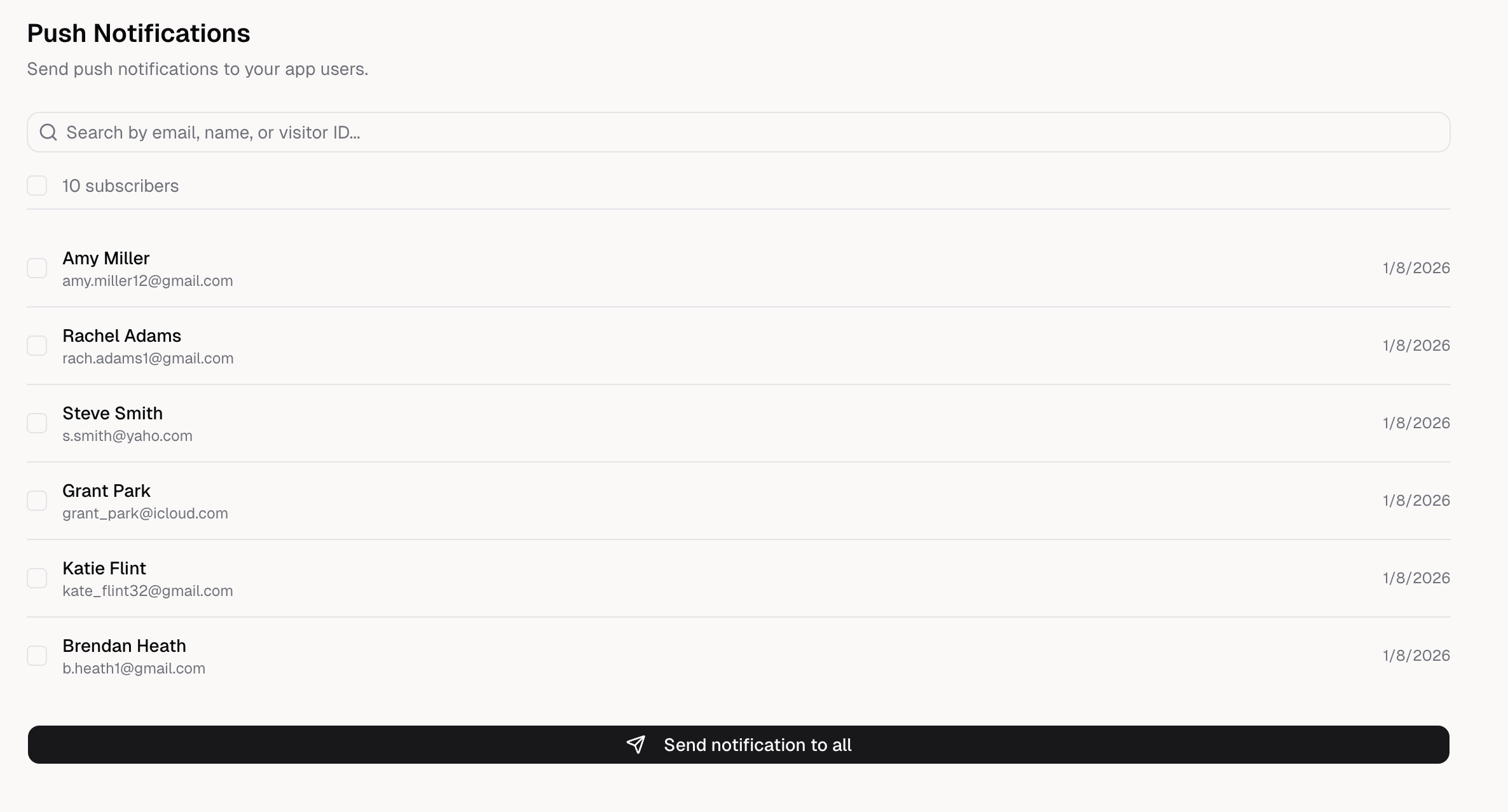
2
Compose your message
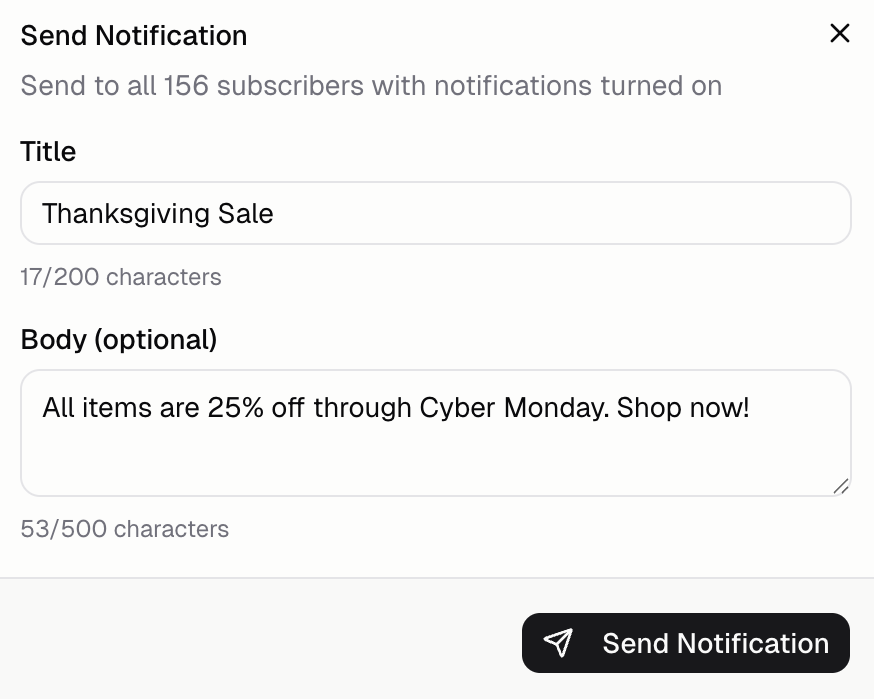
Write a title (required) and body (optional). Keep messages short and valuable.
3
Send
Click Send Notification to deliver immediately.
Triggered by events
Send notifications automatically when something happens in your app. Ask Hercules:- “Send a notification when an order is placed”
- “Notify users when their order ships”
- “Send a notification when an order is out for delivery”
- “Notify users when their order is delivered”
Scheduled from your app
Schedule notifications to send at specific times or after delays. Ask Hercules:- “Send a welcome notification 1 hour after sign up”
- “Remind users about abandoned carts after 24 hours”
- “Let me schedule notifications from an admin page”
Test push notifications
Push notifications do not work in Hercules preview. Follow the mobile app testing instructions to test on a real device:- Publish your app
- Install on a real device (Add to Home Screen)
- Grant notification permission when prompted
- Send a test notification from Mobile → Push Notifications
FAQ
Do notifications work in Hercules preview?
Do notifications work in Hercules preview?
No. Push notifications do not work inside the Hercules preview. You must test on a published URL
Can I send notifications to specific users?
Can I send notifications to specific users?
Yes. From the Push Notifications UI, search by email, name, or visitor ID to select specific
users.
How do I re-request permission if a user denied?
How do I re-request permission if a user denied?
You can’t re-prompt programmatically. Guide users to their device settings to enable notifications
for your app. Show a helpful message with instructions.
Do notifications work on iOS Safari?
Do notifications work on iOS Safari?
Yes, as of iOS 16.4+. Users must add your PWA to home screen first. Notifications won’t work from
Safari directly, only from the installed PWA.
Can I test iOS app notifications in the simulator?
Can I test iOS app notifications in the simulator?
No. Test on a real iPhone with a TestFlight build. The iOS Simulator can’t register with Apple for
push notifications.
Do notifications work in my App Store iOS app?
Do notifications work in my App Store iOS app?
Yes, once you turn on iOS push notifications in the app’s mobile settings, upload an APNs key,
and build again. iOS apps have no web push, so native builds use Apple Push Notification service
(APNs) instead: your app registers through
window.Capacitor.Plugins.PushNotifications. See Send
notifications to your iOS app.Do notifications work in my Google Play Android app?
Do notifications work in my Google Play Android app?
Not today. The Android app Hercules builds shows your app in Android WebView, which has no web
push, and the build does not include a native push service. Android users can still get
notifications from your app installed from the web (PWA) in Chrome. The exception is browser-based
Android packaging, in an early test for some accounts: that build hands web notifications to a
compatible browser.
What can I customize in a notification?
What can I customize in a notification?
- Title: Bold headline (keep it short, max 200 characters) - Body: Main message (optional, max 500 characters) Known limitation: Web notifications can’t deep-link to a specific screen. They open the app generically. In your iOS app, a tapped notification can open a specific screen.