
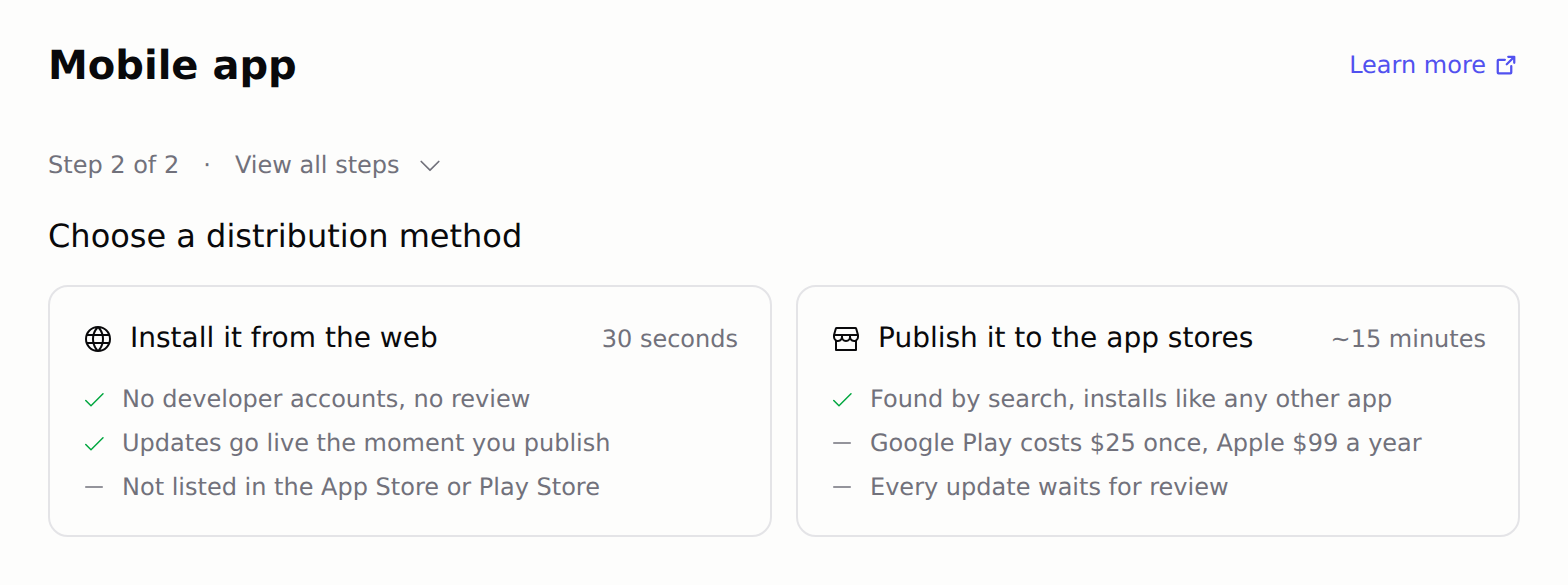
How do I publish my app to the App Store?
- Google Play
- iOS App Store
- Microsoft Store
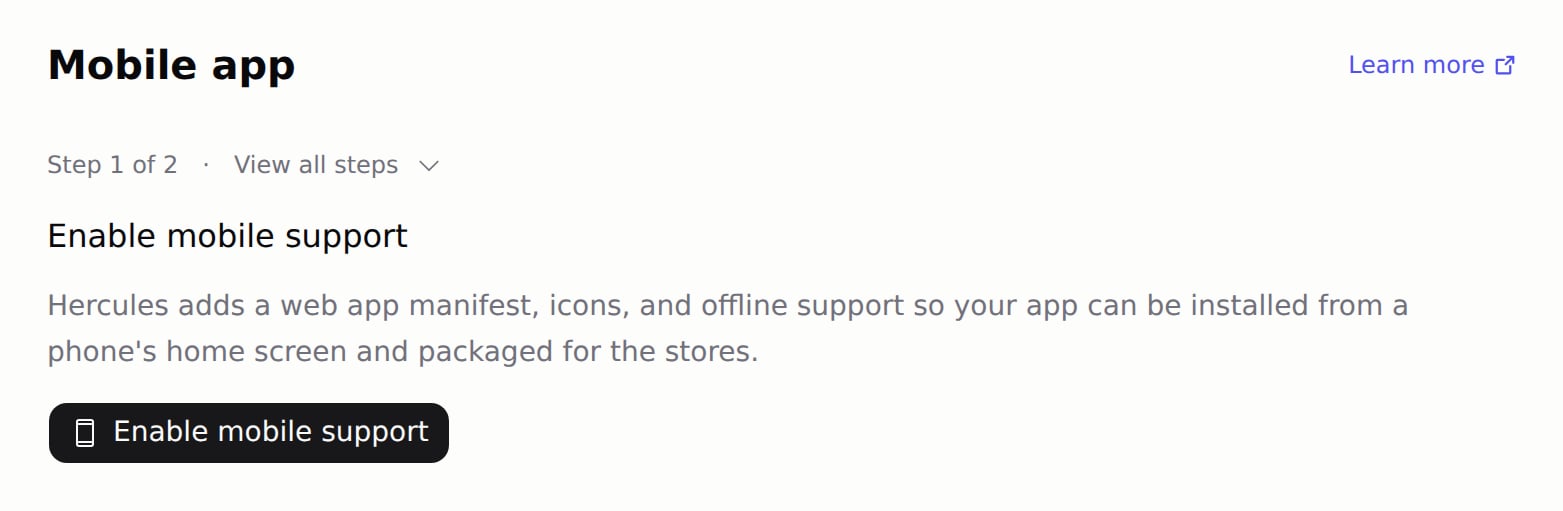
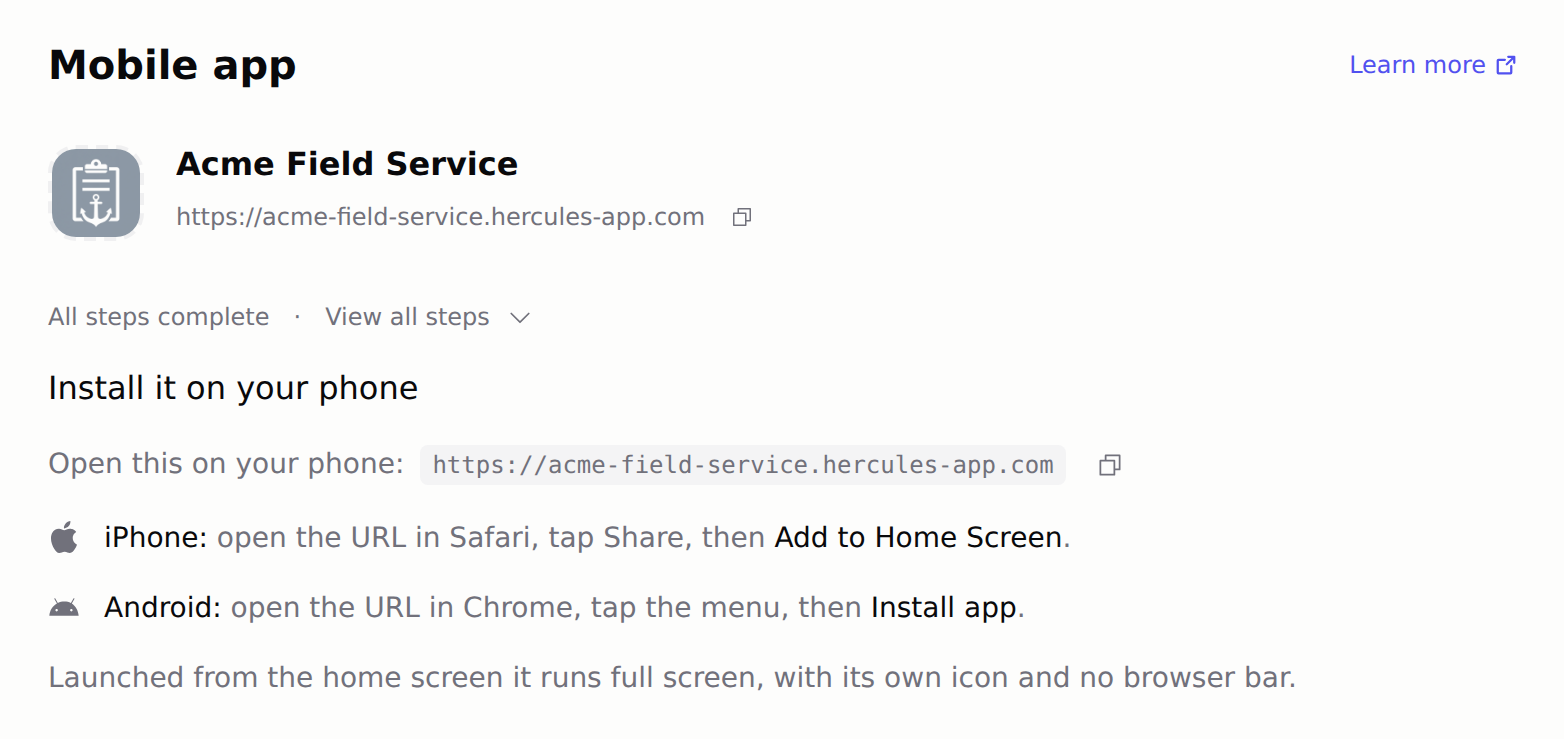
- Progressive Web App
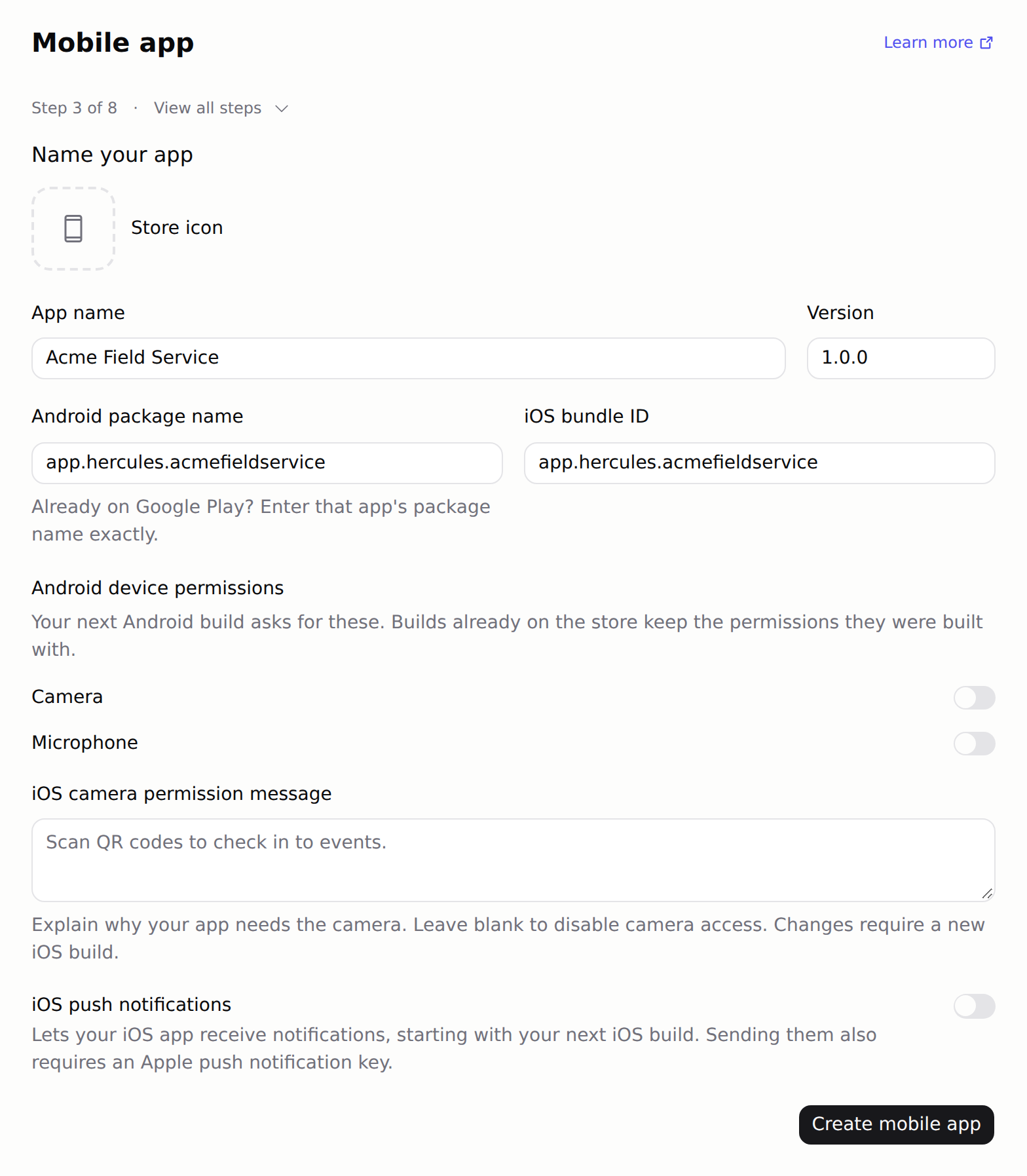
Name Your App
- Store icon: a square PNG at least 1024x1024px. Transparent areas become white. It becomes your launcher icon. Leave it empty to use your home screen icon: the first build copies it in
- App name: the name shown under your icon on the phone
- Version: the version shown on your store listing, like
1.0.0 - Android package name: a permanent ID for your app, like
app.hercules.myapp. If your app is already on Google Play, enter its package name exactly, and read How do I update an app that is already on Google Play? first - Device permissions: turn on Camera, Microphone, or Location if your app uses them. Each switch covers your iOS build too
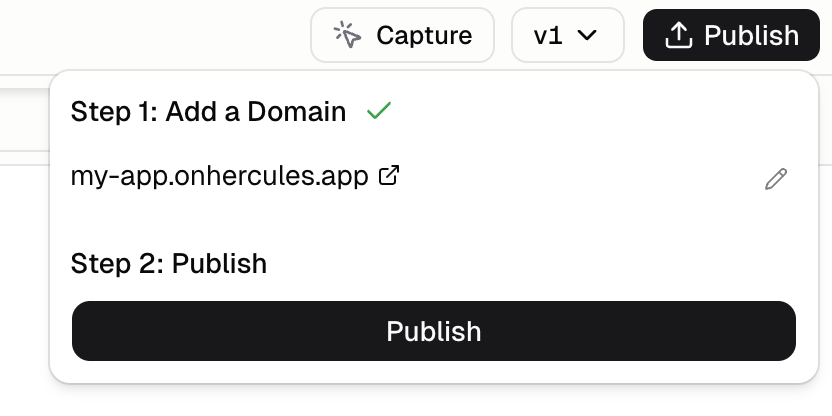
Publish Your App
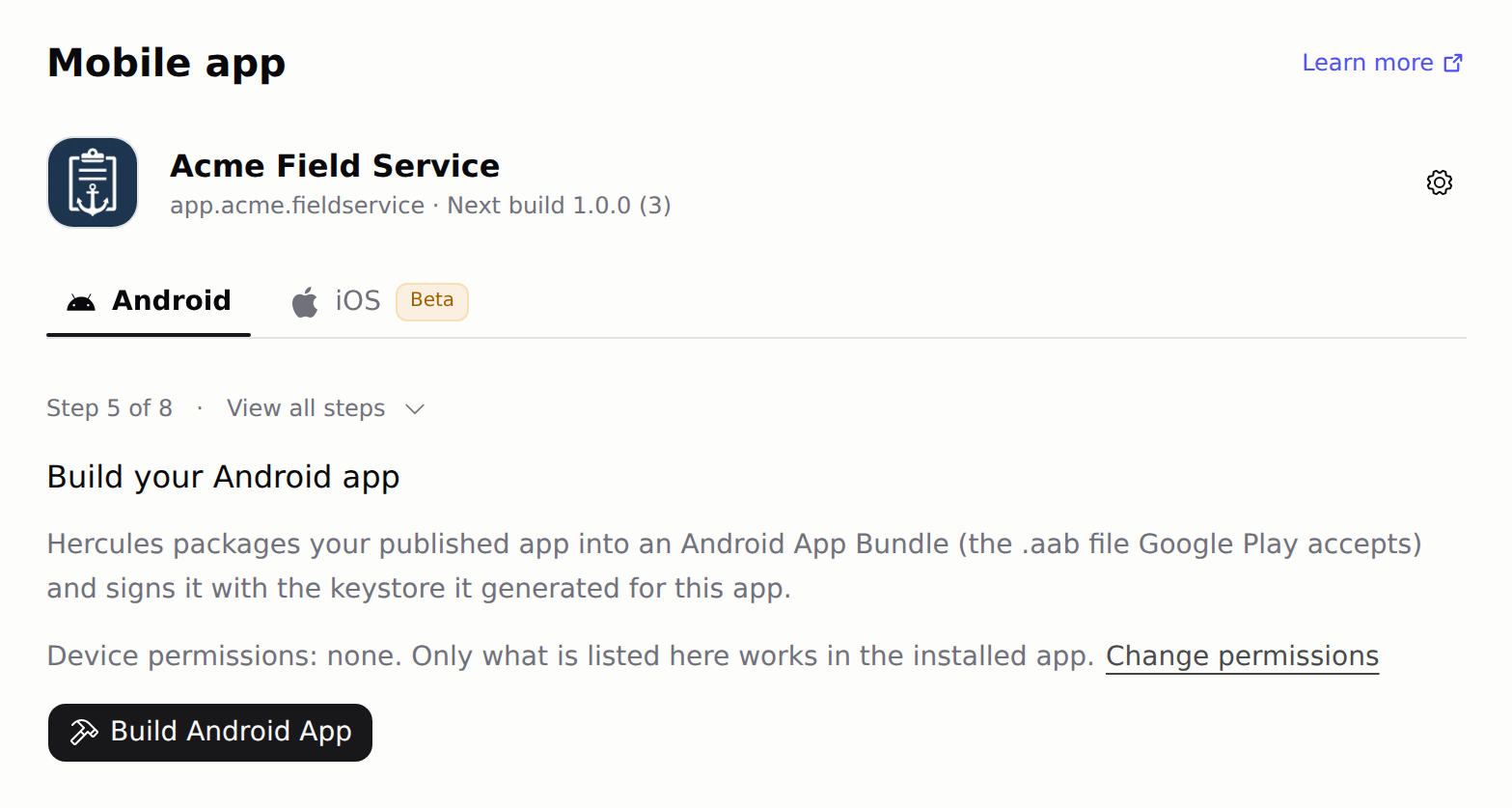
Build Your Android App
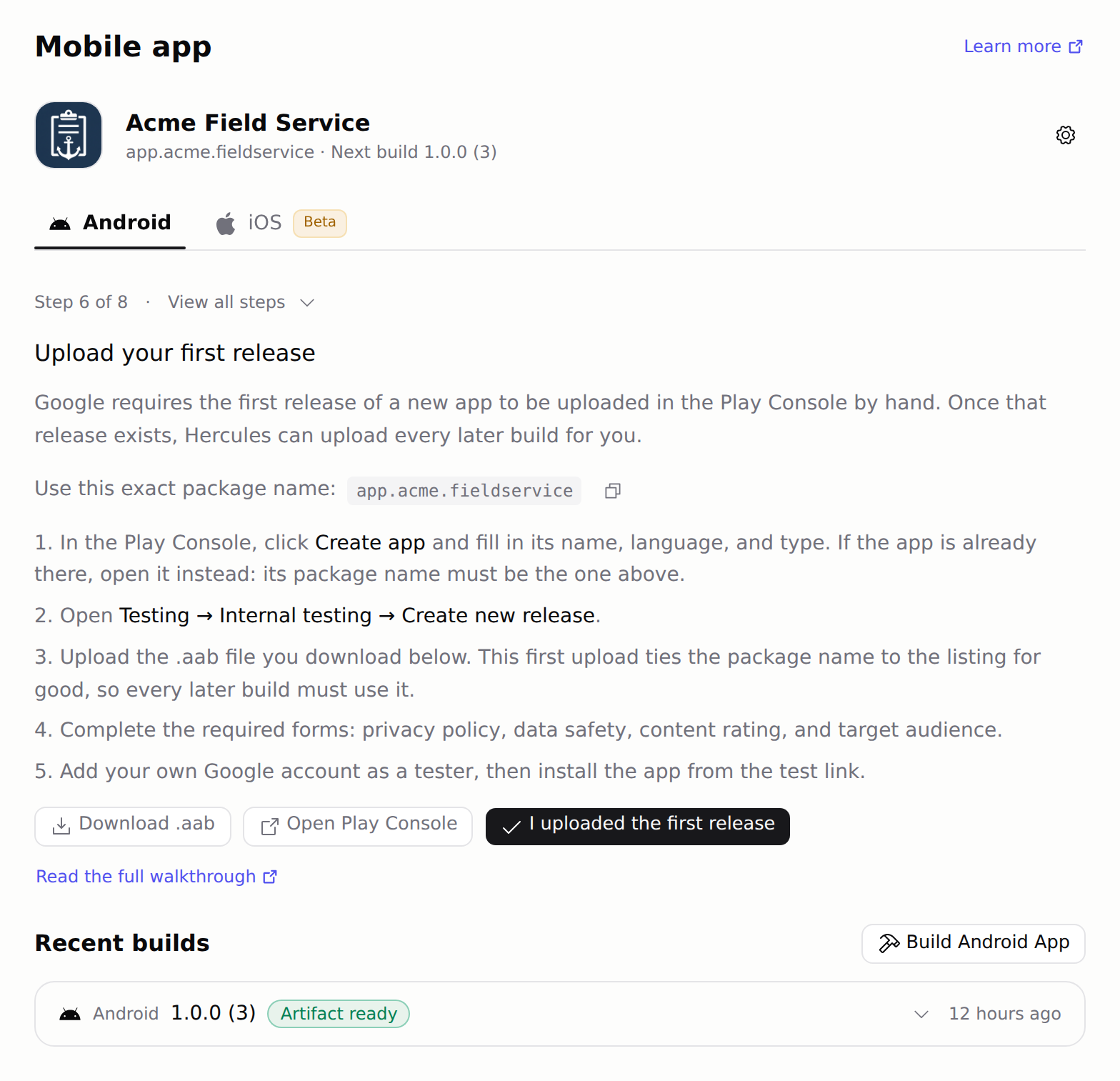
Upload Your First Release
- Click Download .aab to get your app bundle (the file Google Play accepts)
- In the Play Console, click Create app and fill in its name, language, and type. If the app already exists, open it instead
- Click Testing → Internal testing → Create new release
- Upload the
.aabfile - Under Policy and programs → App content, complete every declaration, including Sign-in details for reviewers. Then fill in the Main store listing. See what Google Play needs
- Add your own Google account as a tester, then install the app from the test link
- Back in Hercules, click I uploaded the first release
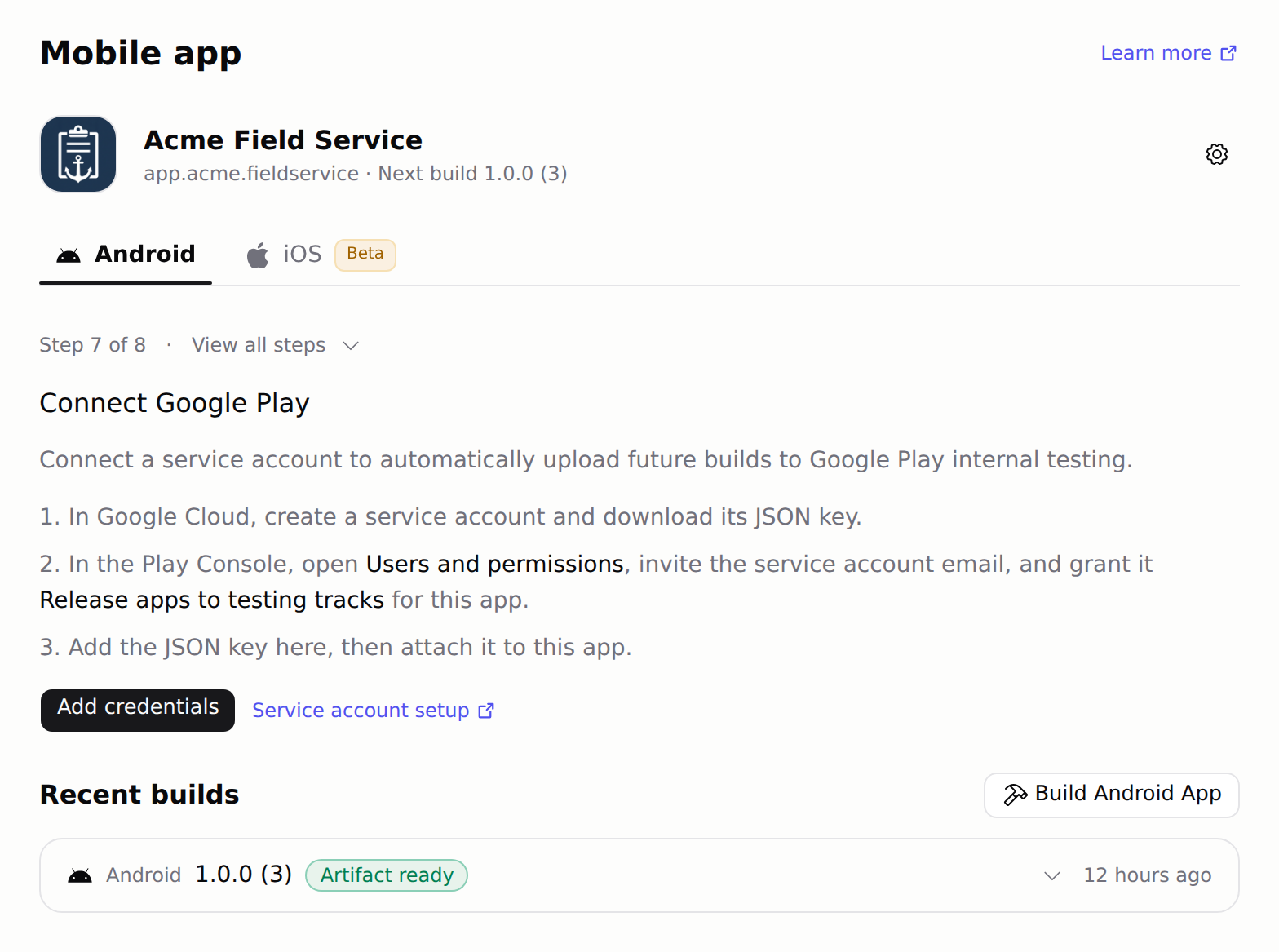
Connect Google Play
- In Google Cloud, create a service account (a robot account that acts for you) and download its JSON key
- In the same Google Cloud project, open the Google Play Android Developer API and click Enable
- In the Play Console, open Users and permissions, invite the service account email, and grant it Release apps to testing tracks for this app
- In Hercules, click Add credentials, paste the JSON key into Service account JSON, and click Add credential
- Select it under Google Play credential
Go Live
.aab) on the first build and reuses it for every build, so there are no keystore files for you to save.Package Android yourself with PWA Builder
Package Android yourself with PWA Builder
Generate Android Package with PWA Builder
- Go to pwabuilder.com
- Enter your app URL (e.g.
https://my-app.onhercules.appor your custom domain) - Click Start, then Package for stores
- Select Android and download the AAB file
Set Up Digital Asset Links
- On the PWA Builder Android package screen, copy the
assetlinks.jsonsnippet it generates (it includes your package name and SHA256 fingerprint, a unique ID tied to your signing key) - Ask Hercules to add it to your app:
- Publish your app again so the file goes live
- Visit
https://my-app.onhercules.app/.well-known/assetlinks.json(or your custom domain). It should return the JSON you pasted, not your app’s page
Submit to Google Play
- Go to Google Play Console
- Click Create app and fill in details
- Click Production → Create new release
- Upload the AAB file and complete your store listing
- Submit for review
Google Play says the service account has no access to my app
Google Play has not given the service account you connected permission to publish this app. Hercules checks this before each build, so the build does not start.- Copy the service account email from the error (it ends in
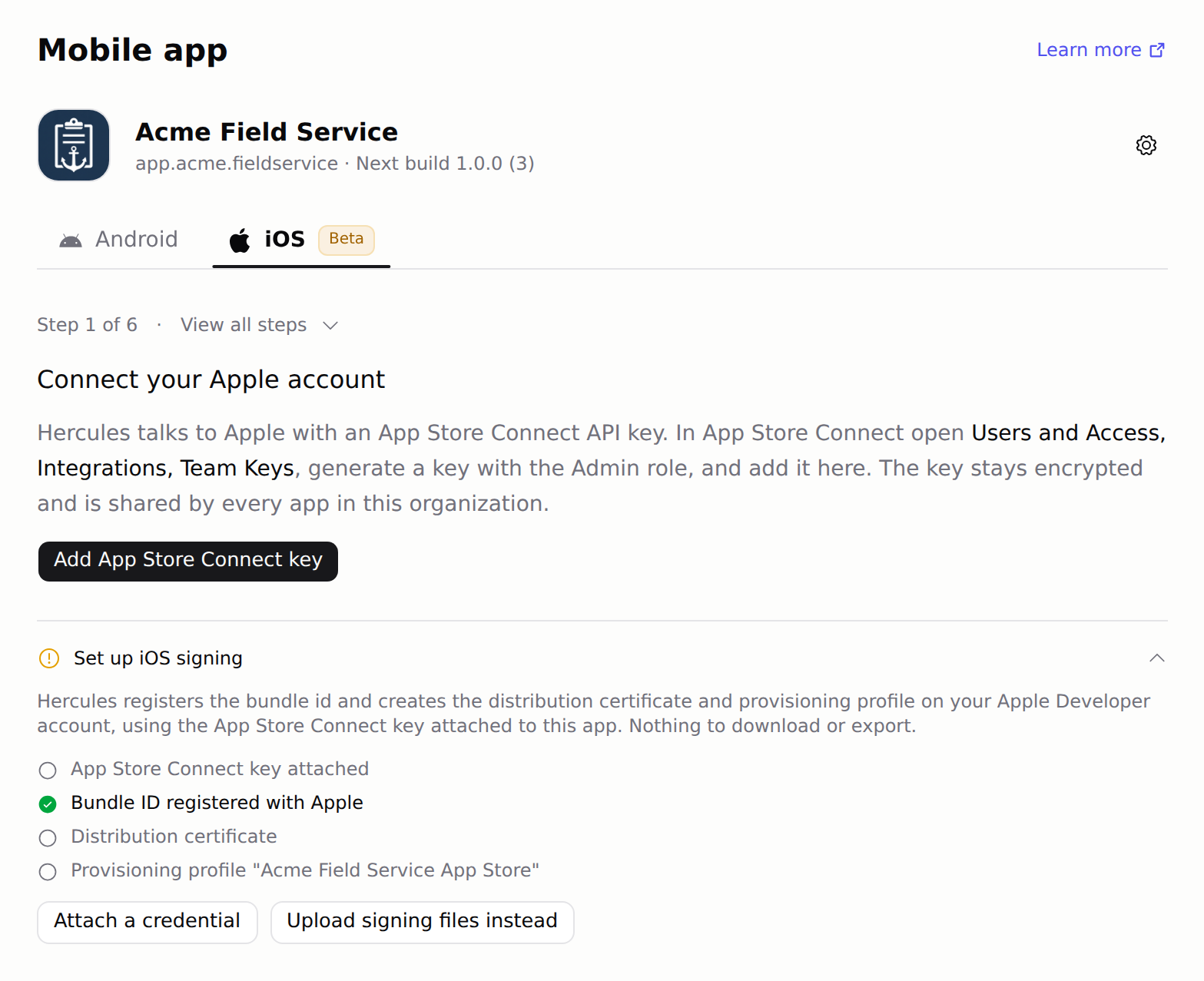
iam.gserviceaccount.com) - In the Play Console, open Users and permissions and click Invite new users
- Enter that email, open App permissions, add this app, and grant Release apps to testing tracks
- Click Invite user, then build again in Hercules
.aab file and upload it by hand.
Google Play says the Android Developer API is not enabled
The Google Cloud project that holds your service account has the Google Play Android Developer API turned off, so Google refuses every request from that key. Hercules checks this before each build, so the build does not start.- Open the link in the error, or open the Google Play Android Developer API page and select the project that holds your service account
- Click Enable
- Wait a few minutes, then build again in Hercules
Google Play says my app is still a draft
Google Play accepts only draft releases until the app’s first release is rolled out in the Play Console, so it refuses the upload.- In the Play Console, open your app and finish every setup task on its Dashboard
- Open Testing → Internal testing and roll out the release you uploaded by hand
- Build again in Hercules
Why does Google Play hold my build until I send it for review?
Sometimes Google Play takes an upload but will not send it for review on its own, for example after it rejected an earlier update. Hercules still uploads the build and shows a note on the Go Live step.- In the Play Console, open Publishing overview
- Under Changes not yet sent for review, click Send for review
Why does my Android app show the default icon?
The app had no store icon or home screen icon when it was built. Open App settings, upload a Store icon (a square PNG at least 1024x1024px), click Save changes, and build again. Uninstall the old version from your phone before you install the new build. Android launchers cache icons, so an update can keep showing the old one.Why does Google Play say my app bundle needs a different package name?
Google Play ties an app to the package name of the first file uploaded to it, and rejects every later upload with a different one. The error names the package Play expects.- Before you click I uploaded the first release: open App settings, set Android package name to exactly the name in the error, click Save changes, and build again.
- After that: Hercules locks the package name to match your Play listing. To publish under a new name, create a new app in the Play Console, then click Unlock for a new Play listing under the package name in App settings.
Do I need to save my Android signing key?
Not for apps built by Hercules. Hercules creates this app’s upload key (the key that signs each.aab) on its first Android build, stores it securely, and signs every later build with it. The dashboard never shows or exports the key. Its certificate is in App settings under Android upload certificate.
With Play App Signing (the default for new apps), Google signs the copy of your app that people install with its own key. The upload key only proves that a build comes from you, and Google can reset it. To update the app with another tool later, create an upload key in that tool and request an upload key reset with its certificate. Your listing, users, and reviews stay where they are.
If you package with PWA Builder, save your signing key somewhere safe. Google will not accept an update signed with a different key unless you reset the upload key.
How do I update an app that is already on Google Play?
Google Play checks two things on every upload: the package name, and the upload key that signed the.aab. Hercules signs with its own upload key, which it creates on your first Android build.
- Open App settings and set Android package name to the exact package name of your Play app
- If the app was first published with another tool, such as PWA Builder or Android Studio, Play expects that tool’s upload key and rejects Hercules builds. Build once in Hercules with no Google Play credential attached, so Hercules creates its key. Then reset the upload key to it (below)
- Attach a Google Play credential before you build an update: create one as in the Connect Google Play step above, then choose it under Google Play credential in App settings. Hercules then reads the highest version code on Google Play and starts above it. Without a credential, Play refuses a build whose version code it already has
- Open App settings and, under Android upload certificate, click Download certificate to save
upload_certificate.pem. It is available after your next Android build, so build for Android once if the button is grayed out. If that does not help, contact support - In the Play Console, open Protected with Play → Play Store protection → Manage Play app signing
- Under Upload key certificate, click Request upload key reset, enter the reason, upload
upload_certificate.pem, and click Request - Once the reset takes effect, build in Hercules and upload as usual
What do I do when a build fails?
If Hercules can tell a build would fail, it does not start it and says why, for example when your app is not published yet or Google Play has not given the service account access. Fix what it names and click the build button again. If a build starts and then fails, the reason shows in red on the build step and on the build under Recent builds. Fix what it names, then click Build again. If the reason is unclear or the same build keeps failing, click Report this error. The report includes the build ID, so we can look up exactly what happened. You can also copy the Build ID and send it to support.FAQ
Why does App Review say my version cannot be reviewed?
Why does App Review say my version cannot be reviewed?
- Pricing: set a price under Pricing and Availability in App Store Connect (Free is fine)
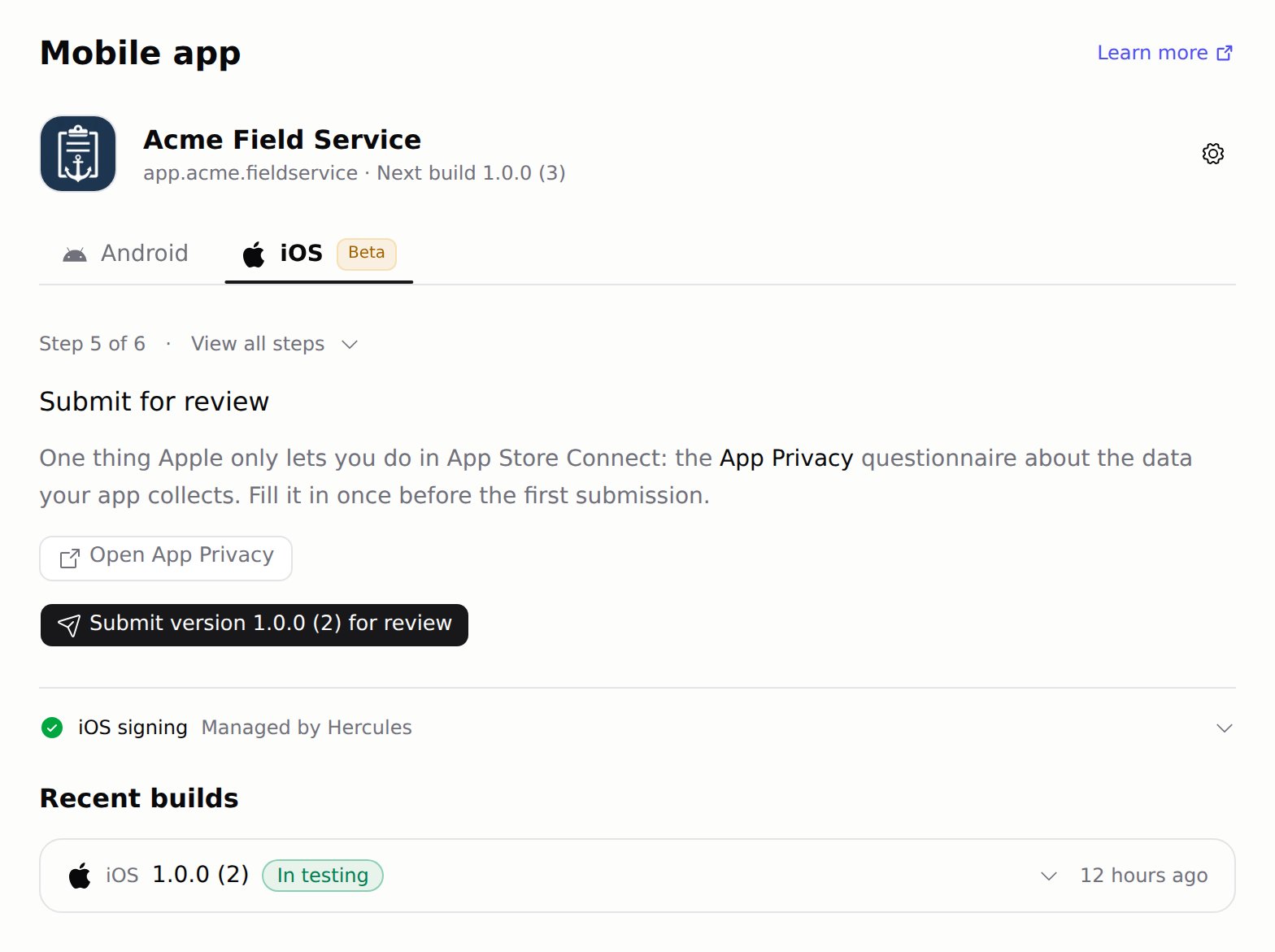
- App Privacy: answer the App Privacy questionnaire in App Store Connect
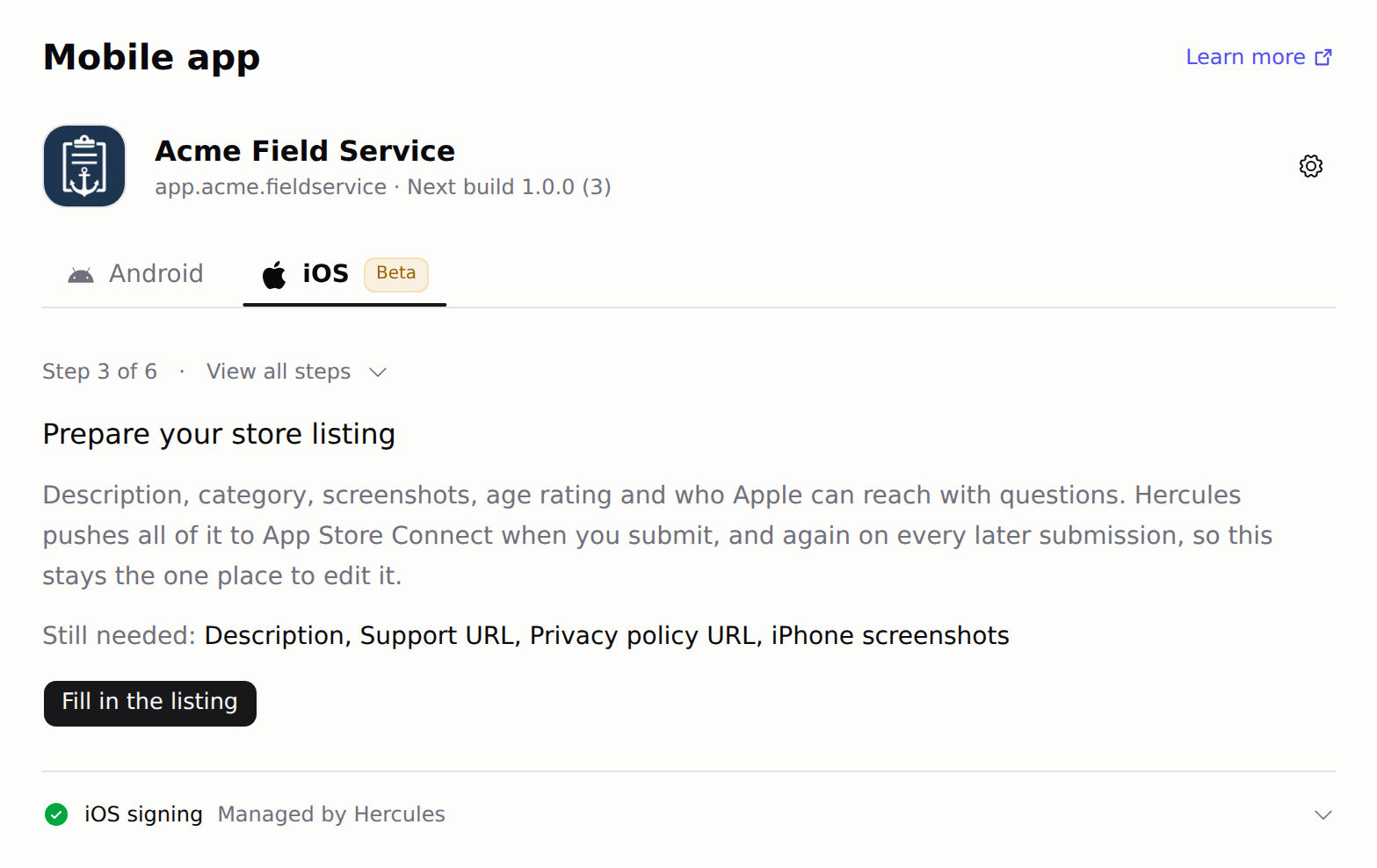
- Screenshots, age rating, Copyright, or Keywords: fill them in the store listing in Hercules
- What’s new in this version: Apple requires it for every version after the first. Fill it in the store listing in Hercules
Why did my iOS upload to App Store Connect fail?
Why did my iOS upload to App Store Connect fail?
- An earlier version supported iPad: Apple does not let an update drop devices. Turn on Also run on iPad in the store listing, add iPad screenshots, and build again
- The version is already on the App Store: raise the Version in App settings and build again. The build number goes up on its own
- No app with your bundle ID: create the app in App Store Connect with the exact bundle ID Hercules shows, then build again
My iOS distribution certificate or provisioning profile expires soon
My iOS distribution certificate or provisioning profile expires soon
Apple says I have reached the limit of distribution certificates
Apple says I have reached the limit of distribution certificates
Why was my iOS app rejected?
Why was my iOS app rejected?
Why was my Android app rejected?
Why was my Android app rejected?
How long does review take?
How long does review take?
- Google Play: Google says up to 7 days, or longer in exceptional cases. Personal accounts created after November 13, 2023 also need a 14-day closed test first
- App Store: usually 1-3 days
- Microsoft Store: usually 1-3 days
Why does my Android icon look cropped or smaller than expected?
Why does my Android icon look cropped or smaller than expected?
Google Play warns about edge-to-edge or large screens
Google Play warns about edge-to-edge or large screens
Google Play says the test app is already installed
Google Play says the test app is already installed
Can I publish to multiple stores?
Can I publish to multiple stores?
Why does my Android app show a browser address bar instead of running full screen?
Why does my Android app show a browser address bar instead of running full screen?
assetlinks.json) is
missing, or does not match your signing key. See the Set Up Digital Asset Links step in the
PWA Builder section of the Google Play tab above. Apps built by Hercules run full screen without
this file.Do PWAs work offline?
Do PWAs work offline?
Why PWA instead of app stores?
Why PWA instead of app stores?